When someone can't work, the shift either moves to a teammate or comes back to you to fill. Anything waiting on your decision is on Requests, and counted in the Awaiting your decision bar at the top of the schedule.
1. Choose what workers can do
Open Settings, Scheduling and scroll to Swaps and handovers. Each choice saves as you click it.
- Swapping shifts with a teammate: Manager approves or Off.
- Handing a shift back: Manager approves sends it to you as a give-up request. Straight to the team also gives workers an Offer button that posts the shift to the team, and the first teammate to claim it takes it without coming to you. Off stops both.
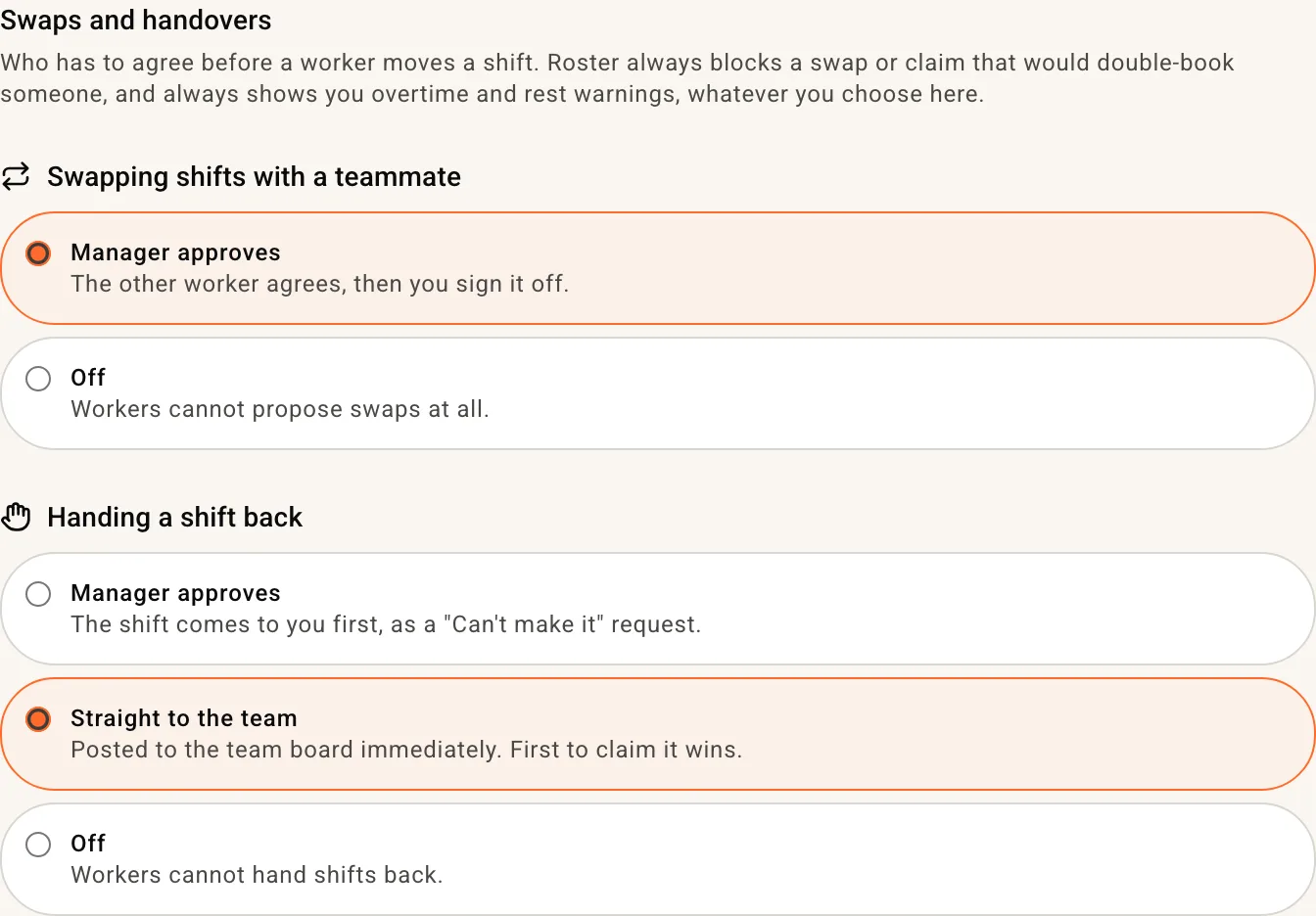
Whatever you pick, Roster blocks a swap or claim that would double-book someone.
2. Swap and give-up requests
On their shift in the app, a worker taps Swap to trade with a teammate's shift, or Give up to hand it back to you.
- A swap reaches Requests only after the other worker accepts it. It reads "Sam wants to give [their shift] to Jo in exchange for [Jo's shift]". Approve swap trades the two shifts. Decline leaves both where they are. Both workers are told either way.
- A give-up reads "Sam wants to give up [the shift]". Approve takes them off it and leaves the shift on Unfilled for you to fill (step 5). Decline keeps them on it.
3. "Can't make it"
When you publish, workers answer each shift with I'm in or Can't make it (unless you've turned confirmations off, see Build and publish a schedule). Can't make it asks for a reason: Sick, Family / personal, Double-booked, Transport / travel or Something else.
For a shift that hasn't started:
- They come off it at once and it goes back to Unfilled.
- You get a text and an email naming the person, the shift and the reason. If the shift starts within 24 hours, the text comes even at night.
- In the By member view, their row shows Shift declined on that day. Hover it for the reason.
Can't make it disappears once they've tapped I'm in. After that they use Give up or Swap, or call you.
4. Sick leave
Choosing Sick or Family / personal doesn't record any leave. Roster prompts the worker to request personal leave for that day, so it reaches payroll. Their request arrives on Requests: Approve or Decline. Approving also takes them off any other shifts they hold that day and leaves those on Unfilled. More in Leave requests.
Someone who never told you and didn't turn up shows on Timesheets instead, where you can record Sick leave against the shift: see Shifts nobody clocked into.
5. Fill the gap
In the By member view of the Schedule, unfilled shifts sit in the Unfilled row at the top: orange, and red once the shift starts within 24 hours.
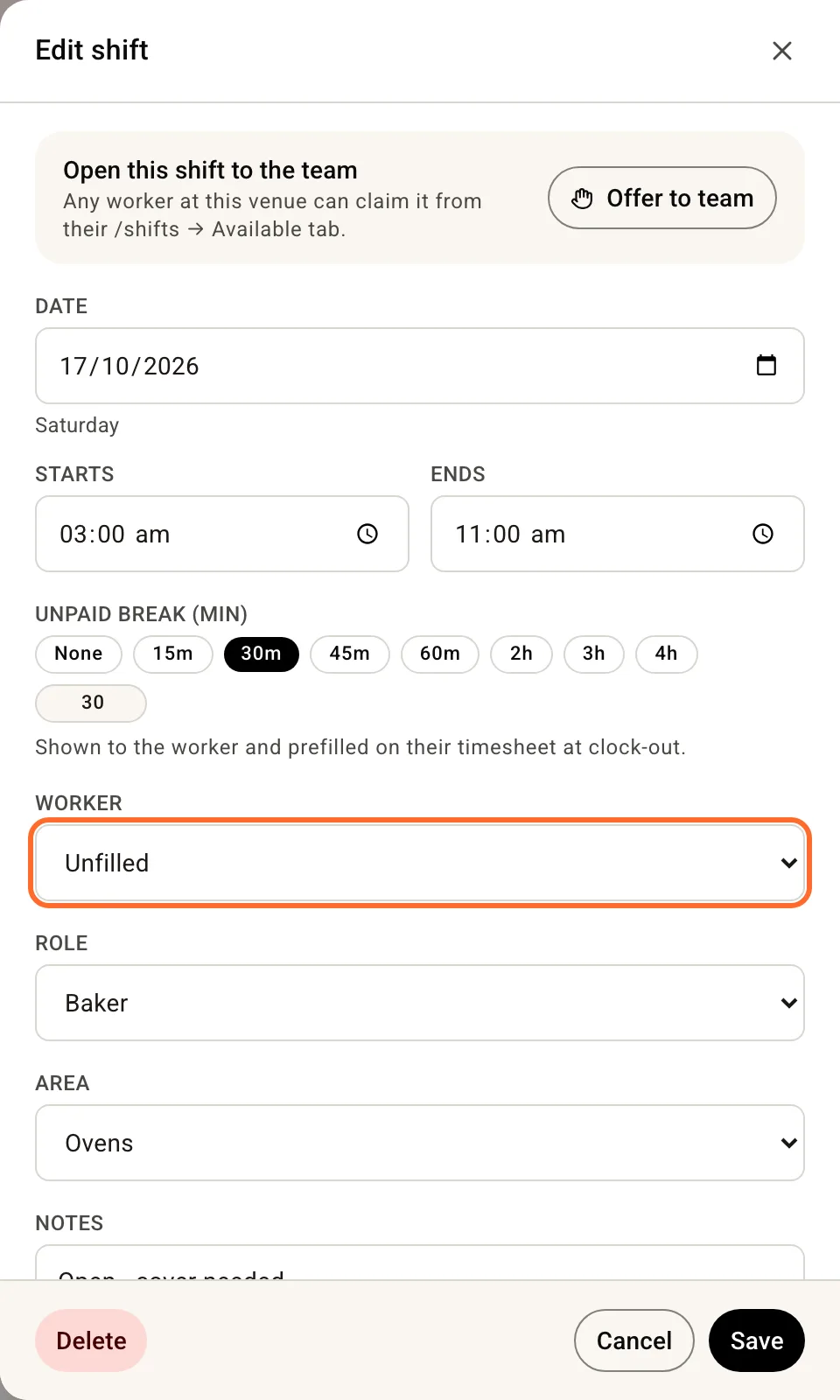
From your team: click the shift, choose someone under Worker or tap a Quick add suggestion, then Save. On a published shift they're told straight away. A published shift also has Offer to team, so anyone at the venue can claim it from the app.
From the Supp marketplace: hover the shift and click Push to Supp, or right-click it. It posts straight away, with no confirm step. The shift has to be at least 2 hours long and not yet started. The first time, Roster asks you to connect your Supp account. For a role it hasn't posted before, it asks which Supp position to post it as, and remembers.
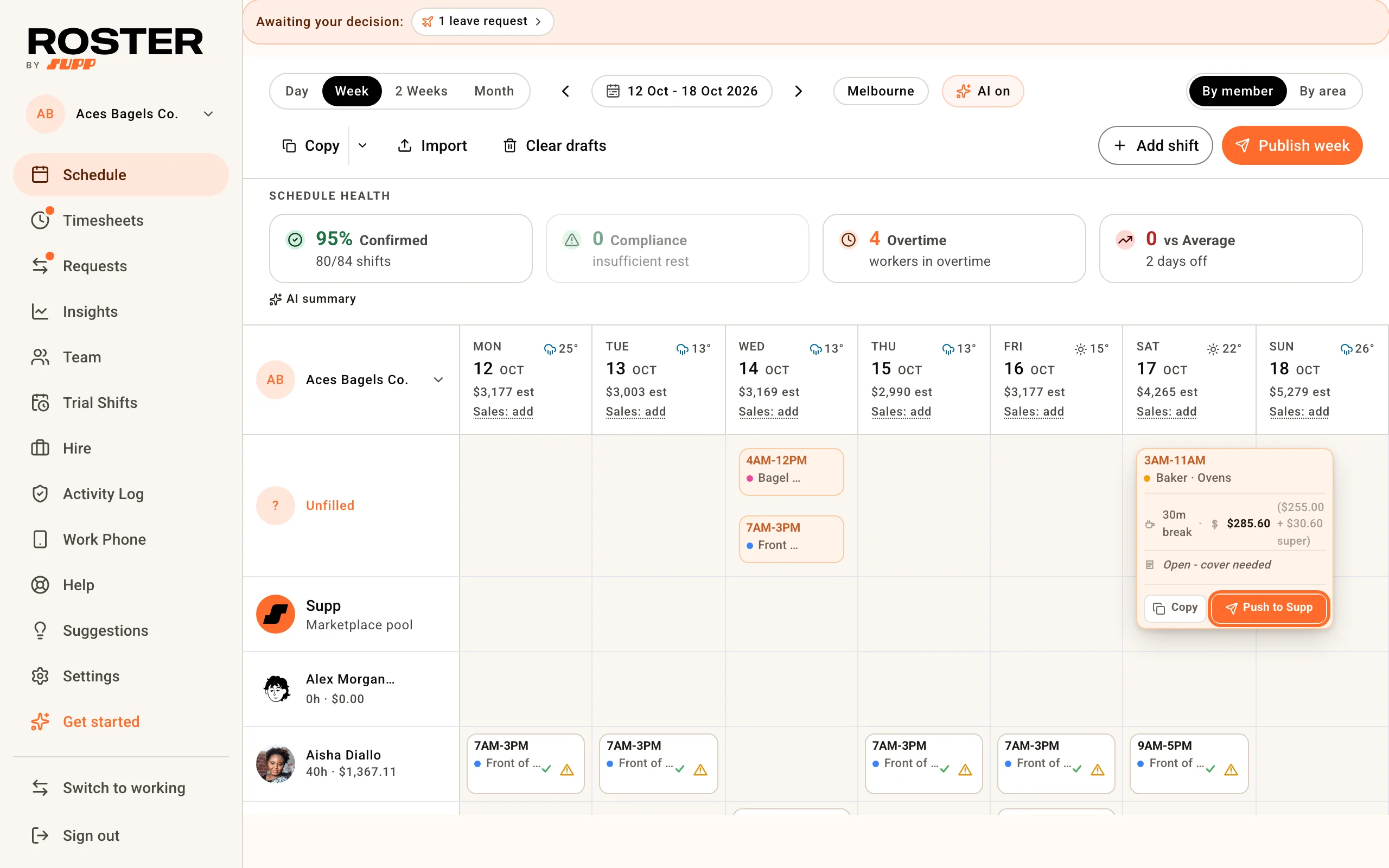
The shift then carries a Supp chip that counts applicants and shows the casual's name once someone is booked. See Schedule colour coding.