About two minutes of your time. The new person does their own paperwork, on their phone, and you add them to Xero once it's done.
1. Invite them
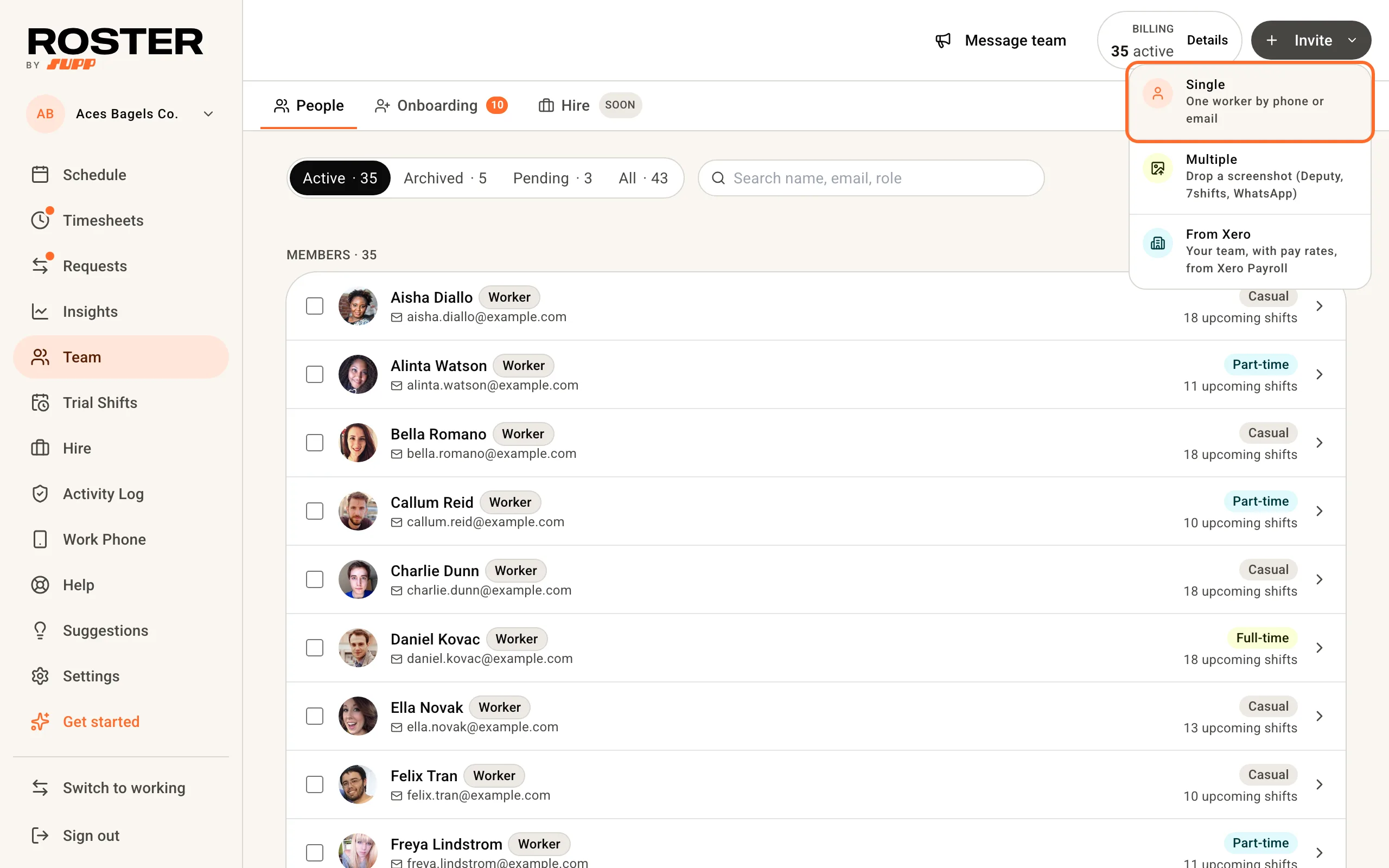
On Team, hover Invite and choose Single.
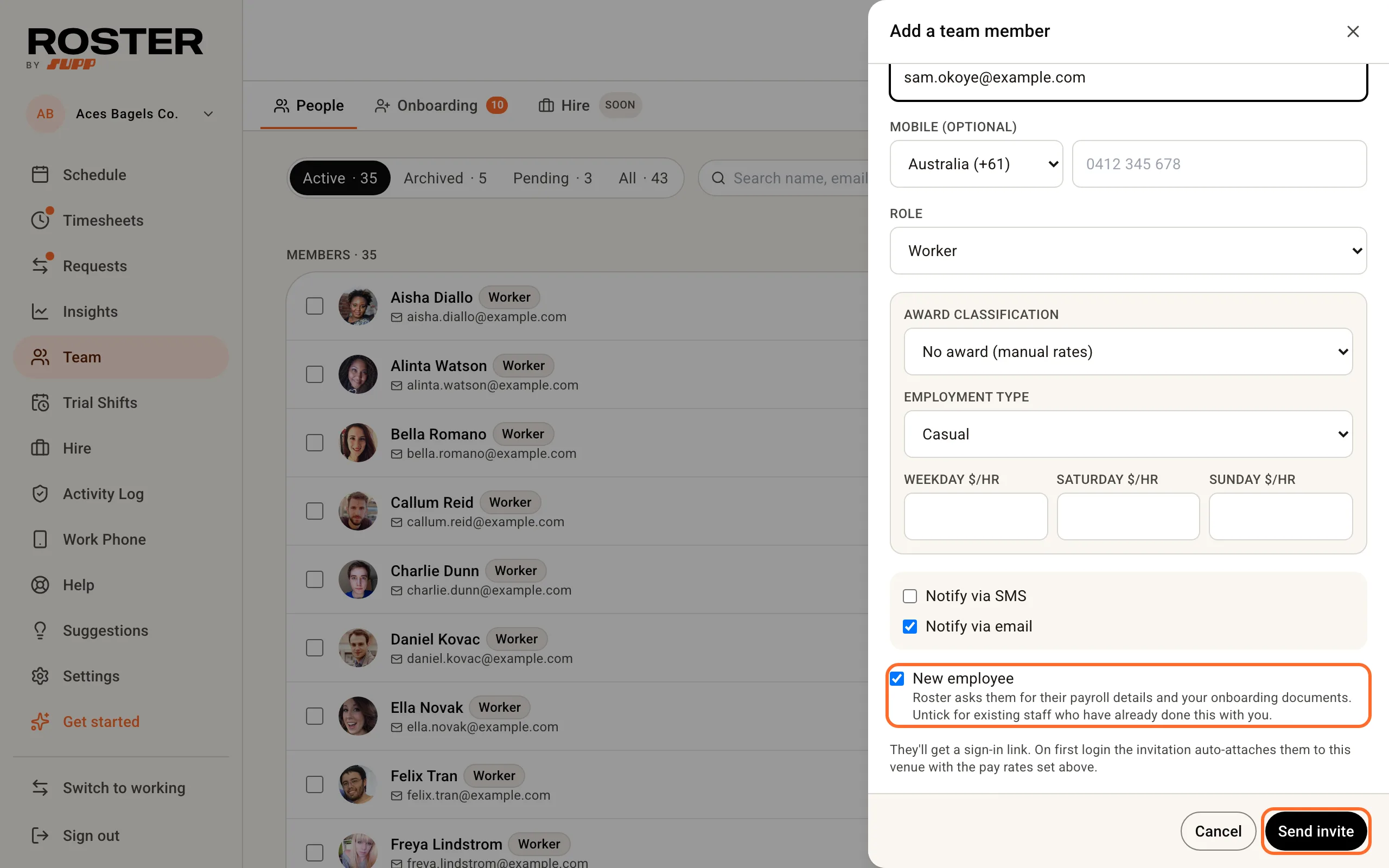
Enter their name and a mobile number or email - they sign in with whichever you give, so no password to set up. Pick their award classification and employment type, and their pay rates if you don't use an award.
Leave New employee ticked: Roster then asks them for their payroll details and your onboarding documents. Untick it for someone who already works for you and has done this paperwork before. Then click Send invite.
The invite lasts 14 days. If it runs out, Resend it from their card on the Onboarding board.
2. They fill in their own details
They get a text or email: "Aces Bagels Co. wants you to join their team. Tap to set up", with a link that signs them straight in. No app to download.
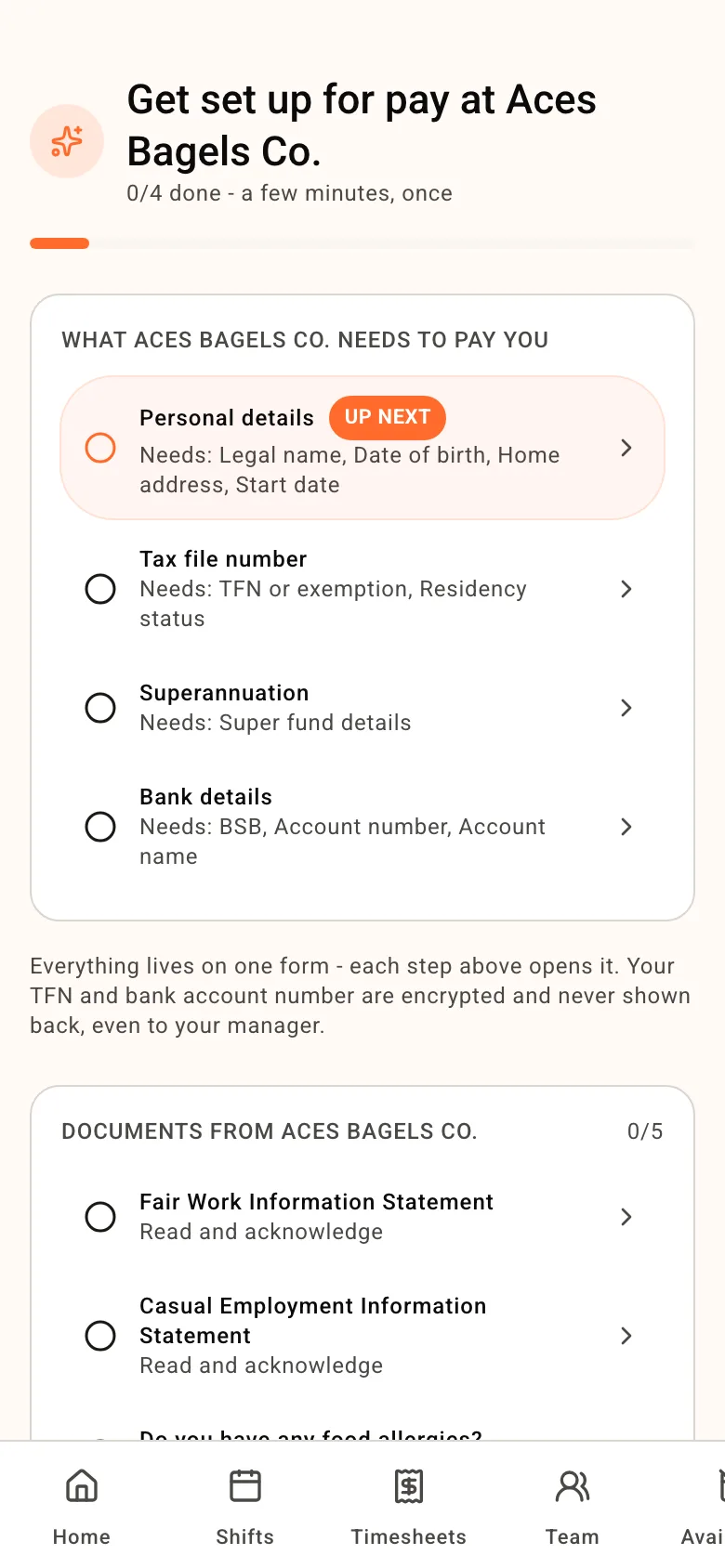
They land on a checklist of what you need to pay them, and the documents in your onboarding pack.
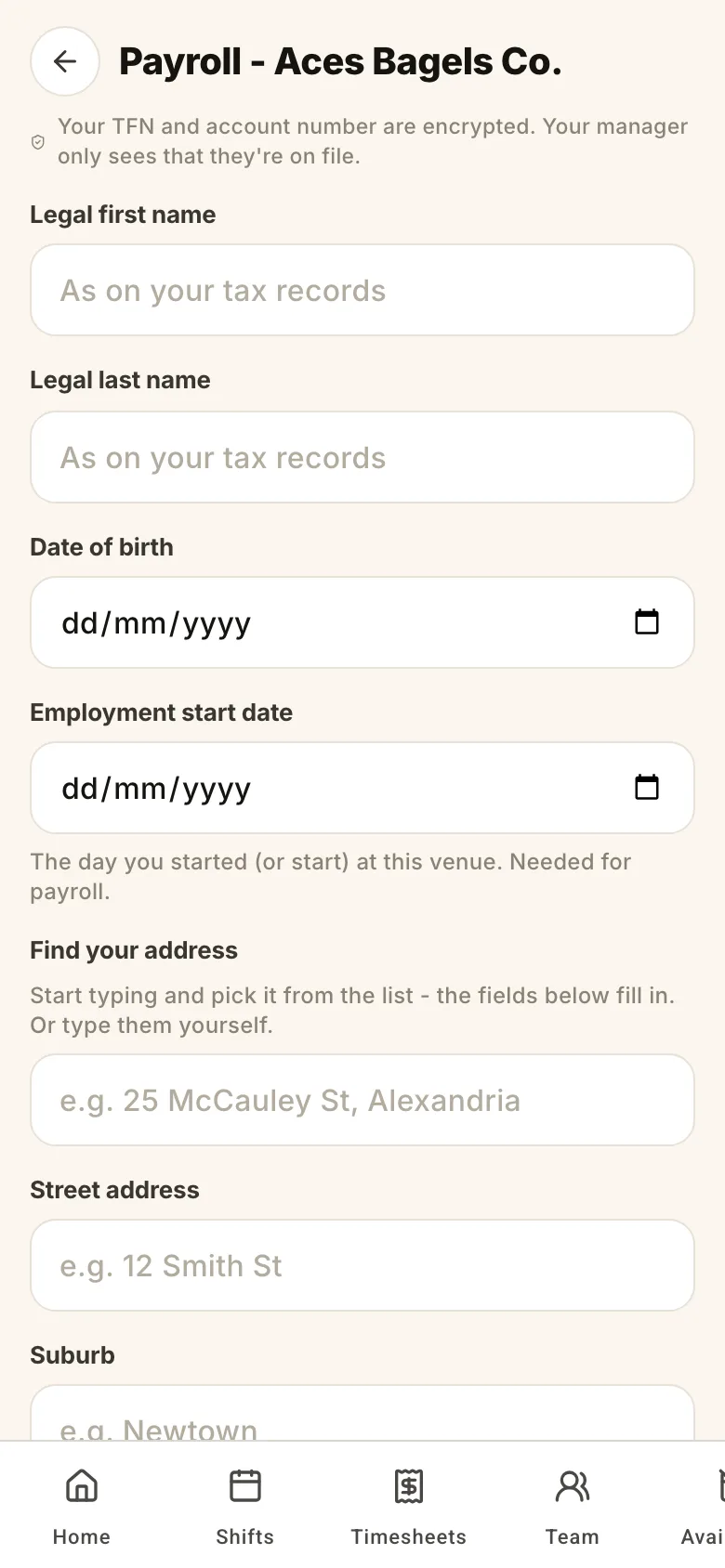
Each payroll item opens one form: legal name, date of birth and address, start date, tax file number declaration, super fund and bank account.
3. Follow their progress
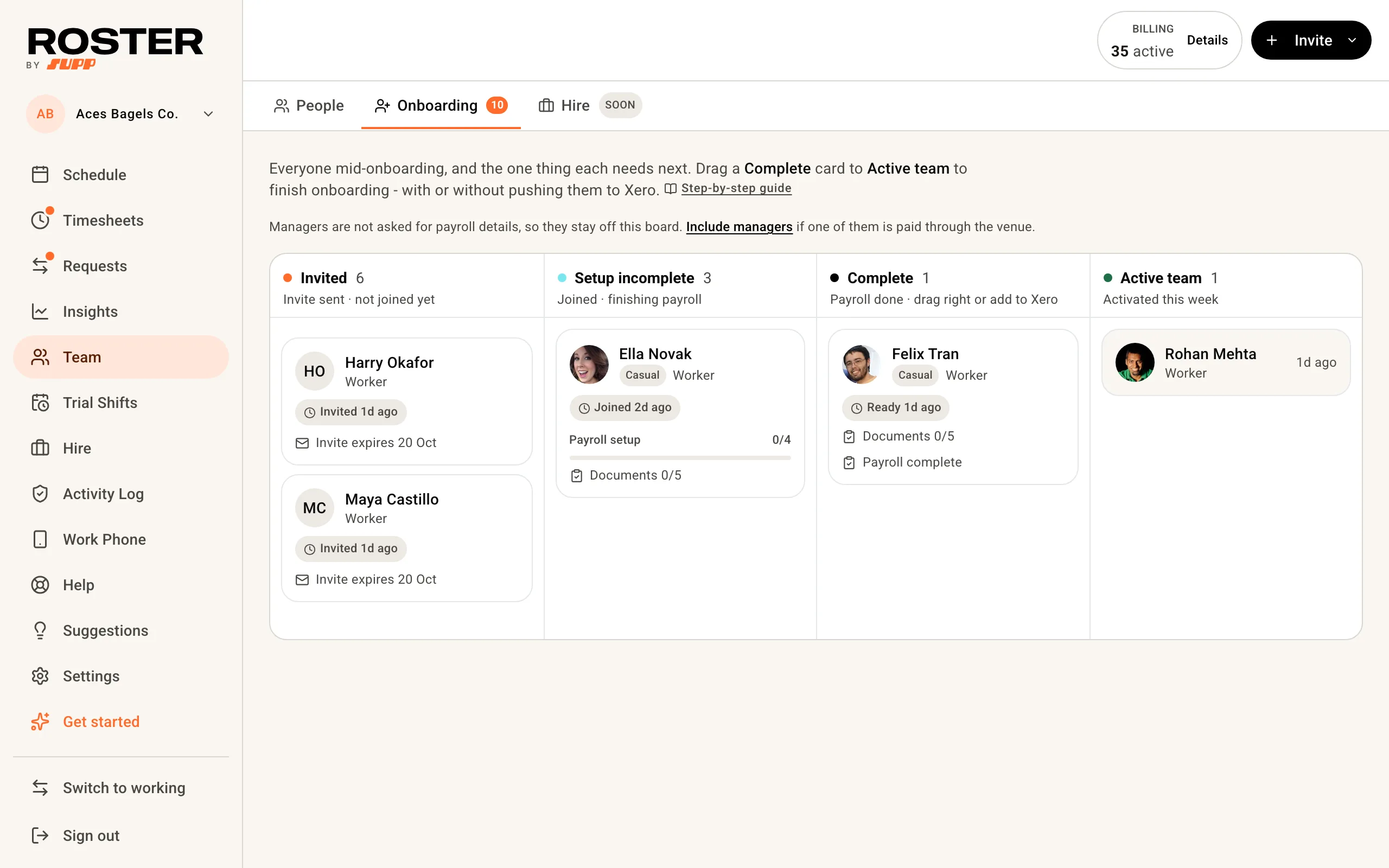
Team, Onboarding shows everyone mid-onboarding, left to right: Invited, Setup incomplete, Complete and Active team. A card turns red once it has been stuck for about a week.
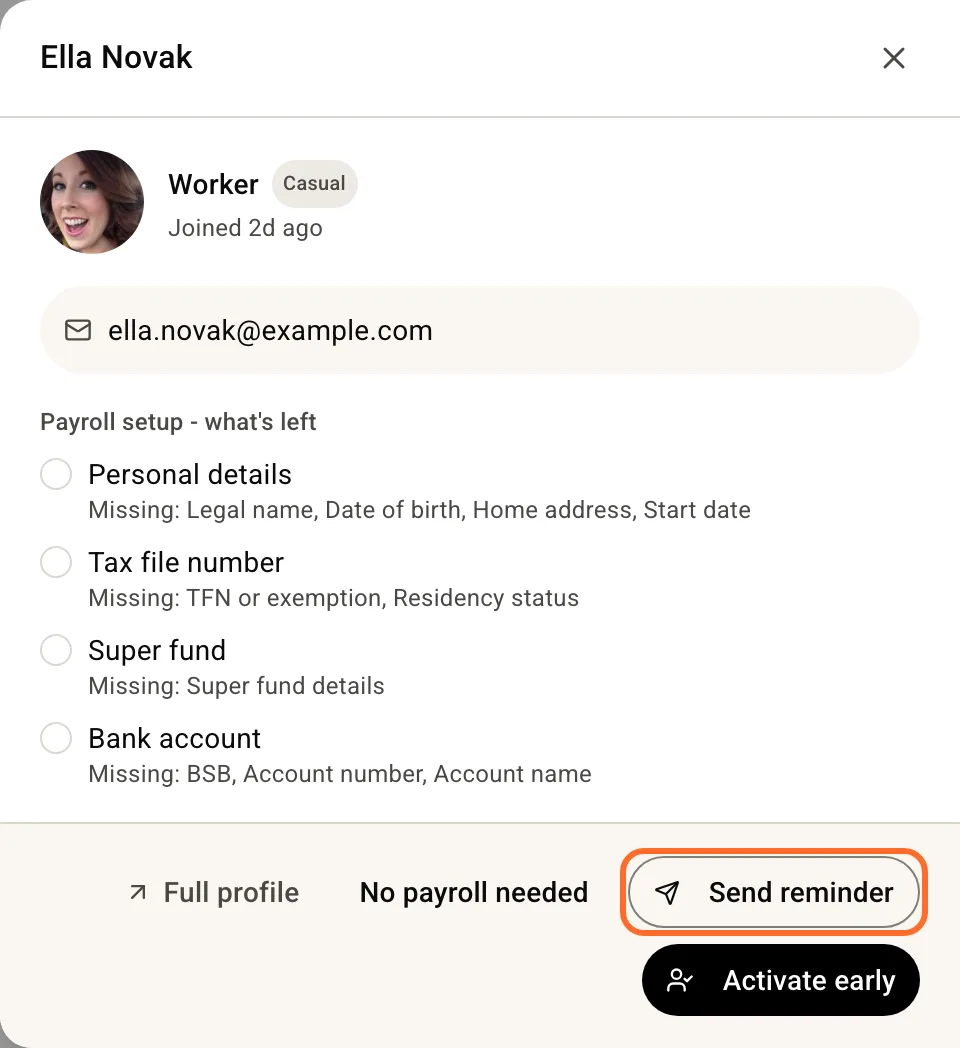
Click a card to see exactly what's missing. Send reminder sends them one text or email listing what's left, at most once a day.
4. Add them to Xero and activate
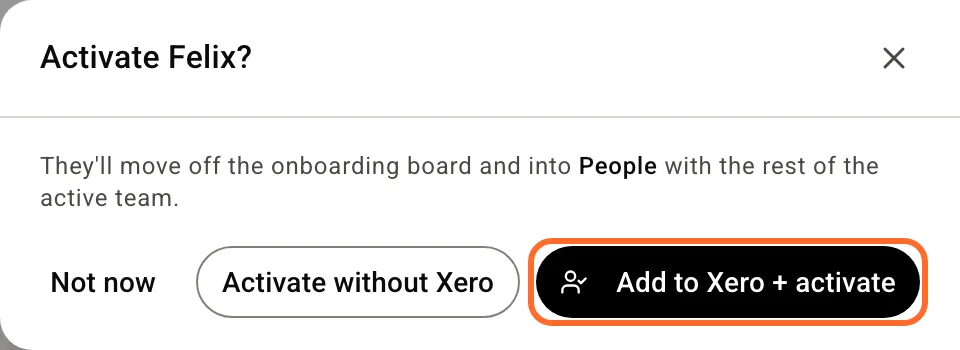
When their card reaches Complete, click Activate on it (or drag it to Active team) and choose Add to Xero + activate. Roster creates the employee in Xero Payroll with their tax, super and bank details and pairs them, so their timesheets export from their first shift.
- New employees start on your pay calendar for new employees. Pick it once in Settings, Integrations - see Set up Xero.
- Missing only a TFN or super fund? You can still add them: Xero holds the gap as pending (an "Awaiting TFN" declaration gives them 28 days to quote one).
- Already set them up in Xero yourself? Choose Activate without Xero, then pair them under Map your team to Xero employees in Settings, Integrations.
- Xero turned them away? Their card shows Re-sync to Xero with Xero's reason. Fix it and press it again.
You can also add someone to Xero from their profile: Team, open the person, Employment & pay, then Add to Xero on the Xero payroll card.
Hiring someone full-time? Same steps. Roster assumes full-timers are on salary, so their approved hours stay in Roster instead of overriding their salary in Xero; everything else, from the payroll checklist to Add to Xero, is the same. If they're paid by the hour, turn on Export approved timesheets to payroll on their profile (Team, open the person, Employment & pay). More in Complete a pay run with Xero.
Set up your onboarding pack once
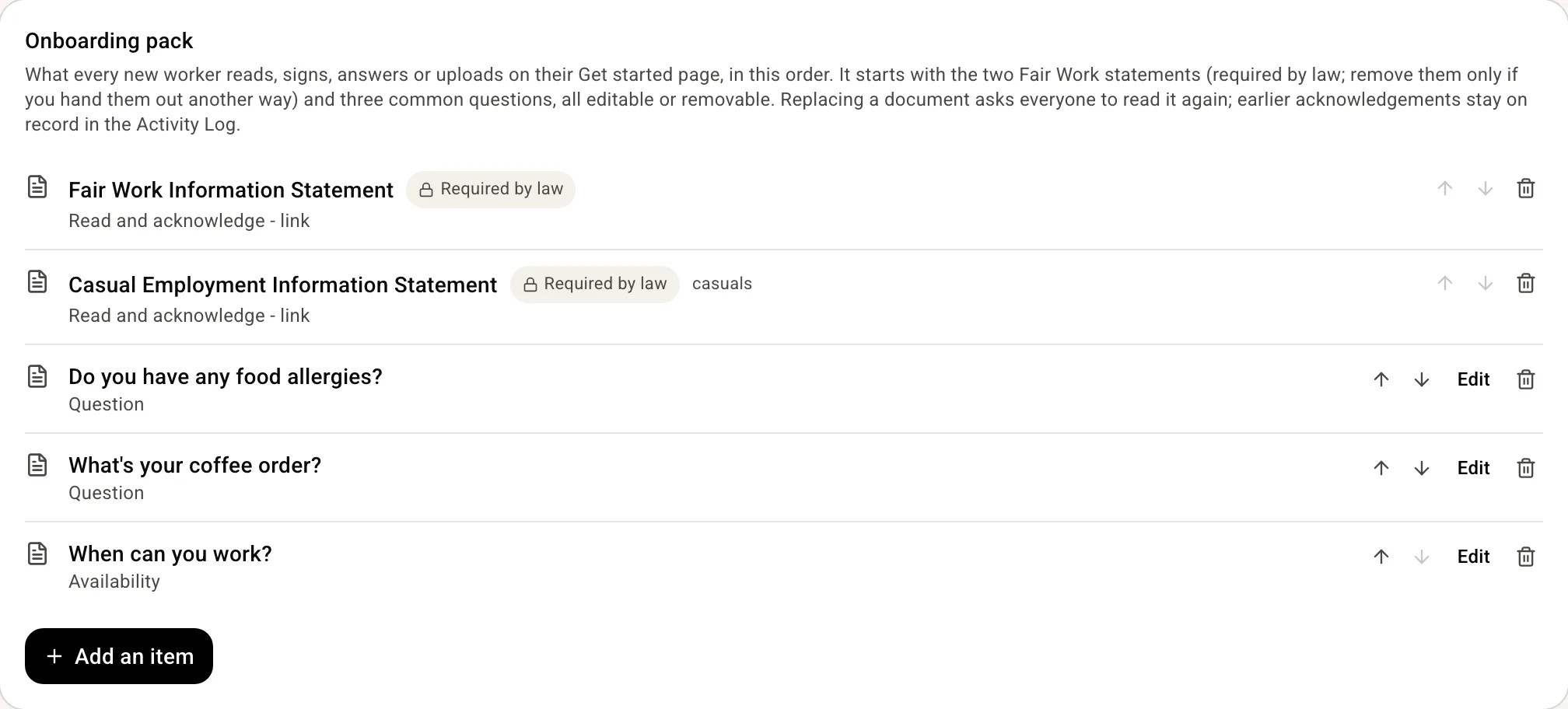
Settings, Onboarding pack is the paperwork every new person gets. The Fair Work Information Statement, and the Casual Employment Information Statement for casuals, are already in it because the law requires them. Add your own: a handbook to sign, a question to answer, a document to upload.
Related
- Set up Xero - connect, import your team, and the settings new employees depend on
- Payroll guide for bookkeepers