Once Xero is connected and your team is paired (see Set up Xero), a pay run is a few minutes in Roster and the usual sign-off in Xero.
The rule that explains everything else: Roster prepares the pay run, Xero pays it. Approved hours leave Roster as draft timesheets in Xero - Roster never creates, posts or files a pay run, and never sends a dollar figure.
The whole flow at a glance
In Roster (a few minutes, from a desktop):
- Approve the period's timesheets.
- Export to Xero. Hours land in Xero as draft timesheets, one per worker per pay period.
In Xero (you, or your bookkeeper):
- Approve the draft timesheets.
- Add the pay run - approved hours flow onto payslips automatically.
- Review payslips, then post the pay run.
- File with STP, download the payment file, pay from your bank, send payslips.
Before your first pay run
Most setup is one-time and covered in Set up Xero. The pay-run-specific checks:
- Every paired employee needs a Payroll Calendar in Xero (in Xero: Payroll, Employees, pick the employee, Employment tab). This is the number-one export blocker, and Roster warns you early with a "no pay calendar in Xero" chip on the pairing card. Pick a Pay calendar for new employees on that card and every employee Roster adds to Xero starts on it. Weekly, fortnightly, four-weekly, monthly and quarterly calendars are supported; twice-monthly isn't - enter those workers' hours in Xero manually.
- Every employee needs an employment start date in Xero before a pay run can include them. Workers you onboarded with Add to Xero already have one.
- Rostered shifts nobody clocked into are listed above the timesheet table, grouped by person, with Add hours, Ask for hours (texts or emails the worker a link), Sick leave, Unpaid leave, Other leave and Dismiss on each. Salaried staff who never clock in get Doesn't clock in, which removes their shifts from the list for good (undo on their profile under Clocks in for shifts). Shifts in the list have no timesheet, so they cannot be exported; the export warns you if any are still listed, so a shift that was worked but never clocked does not surface after payroll has run. Paid leave recorded here is filed in Xero like any other approved leave.
- Unpaired workers are skipped, not blocked. Their hours stay in Roster and the export tells you exactly who was skipped. Pair them in Settings, Venue, Integrations and export again - only the missing hours go across.
- If your Xero organisation tracks cost centres, set up the Cost-centre tracking card first - a Xero org that enforces timesheet tracking rejects untagged hours. See the cost-centre section of the Xero integration guide.
- Optional but recommended: set your pay cycle under Settings, Venue, Business profile. The Timesheets page then gets This pay cycle / Last pay cycle shortcuts so approvals line up with your pay run. The shortcuts only change what's on screen - the export always aligns hours to each employee's own Xero payroll calendar, so hours can't land in the wrong Xero period.
Step 1 - in Roster: approve, then export
-
Open Timesheets on a desktop or laptop - phones and tablets get the touch layout, which has no Export menu.
-
Pick the pay period (the This pay cycle / Last pay cycle shortcuts, if you've set your pay cycle).
-
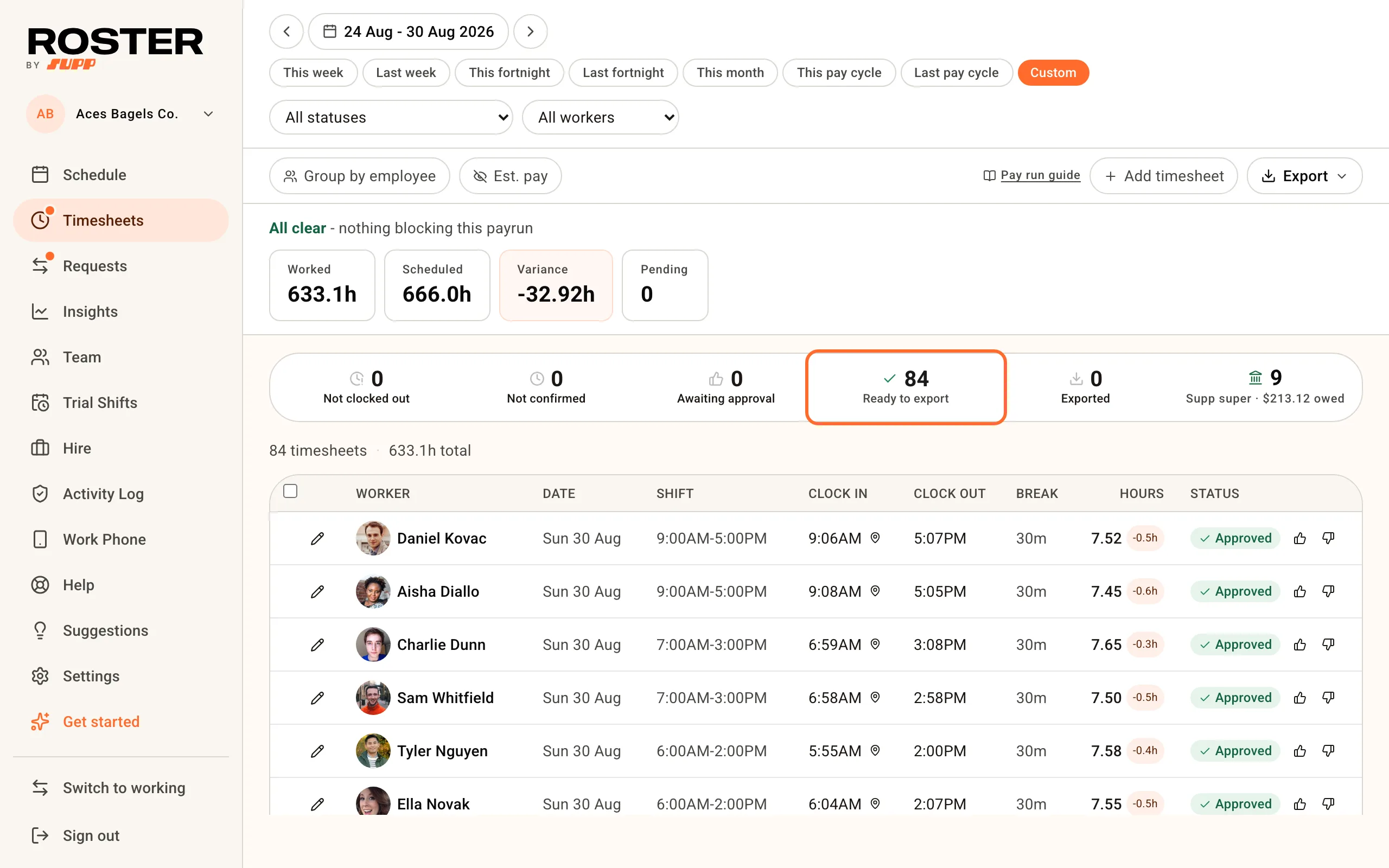
Work the status counters left to right until timesheets read Ready to export. The headline tells you when you're done: "All clear - nothing blocking this payrun".
-
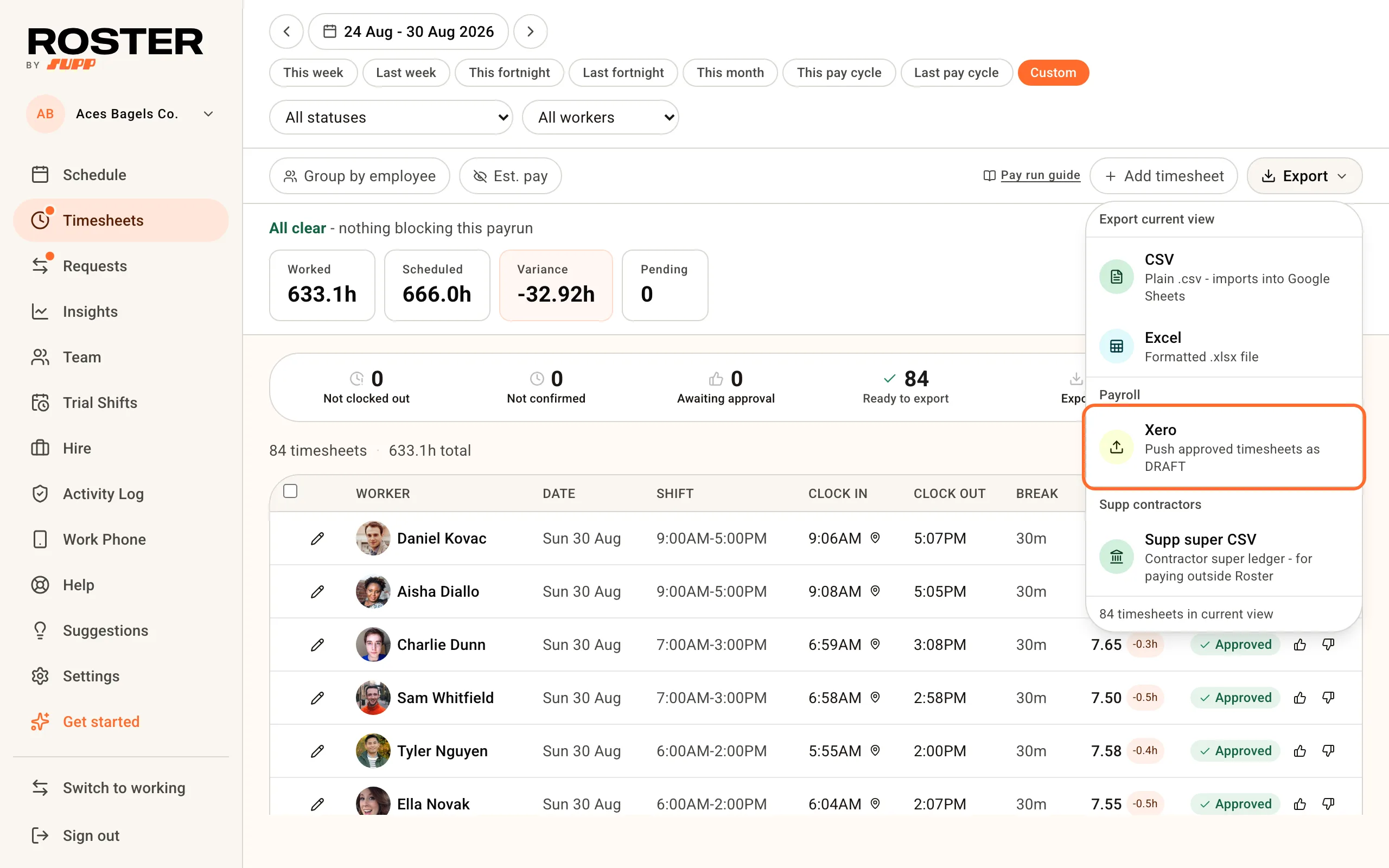
Click Export, then Xero. The export sends the current view - only approved, not-yet-exported timesheets go across, so set your date range and filters first.
-
If some timesheets are still pending, Roster asks before sending: export the approved ones now and the rest later (a re-export merges into the same draft), or cancel and approve everything first.
-
Read the result. Success looks like "Pushed 14 timesheets to Xero as DRAFT", plus a note for anything skipped. Anything that couldn't be sent gets its own message naming the worker and the exact fix - the common ones are in the table below.
Exported timesheets flip to Exported and never send twice.
What actually goes across: one draft Xero timesheet per worker per pay period, carrying hours per day against the worker's ordinary earnings rate - with Saturday, Sunday, public-holiday and evening hours moved onto the matching penalty pay items where your Xero org has them, and tagged with a cost centre if you've mapped one. Pay periods come from each employee's own Xero payroll calendar, so a date range that straddles two periods simply produces two drafts. Never a dollar figure: Xero's pay templates own rates, penalties, loadings and overtime.
Forgot a shift? Approve it and export again. Re-exports merge into the existing Xero draft - no duplicates, no overwriting.
Leave: approved full-day paid leave for full- and part-time staff was already filed in Xero the moment you approved the request, for each leave type you've mapped under Sync leave to Xero - it shows up in the pay run without any extra step at export time.
Step 2 - in Xero: approve timesheets, run the pay run
- Payroll, Timesheets. The drafts from Roster are here. Review and approve each one, or tick several and approve in bulk. Xero's guide: Approve or decline a timesheet.
- Payroll, Pay employees, Add Pay Run, then pick the pay period. Approved timesheet hours flow onto each employee's payslip automatically.
- Review every payslip. This is where Xero applies the money side: base rate, penalties, loadings, overtime, tax and super all come from the employee's pay template and award settings. Add any one-offs (a bonus, a deduction, a reimbursement) directly on the payslip.
- Post the pay run.
- File it with STP so the ATO gets the pay event: File pay with Single Touch Payroll.
- Pay your people. Download the payment file and process it in internet banking - Xero doesn't move money itself. Then send payslips. Xero's guide: Process a pay run and pay employees.
One timing rule worth knowing: once a pay run is filed, the timesheets inside it are locked in Xero. Get the hours right in Roster and the drafts approved before you post and file.
In Roster, every exported timesheet shows when it went across, and carries a Revert export button. Reverting checks Xero first: if the draft is gone (say you deleted it in Xero), the whole pay period unlocks for editing and re-export; if the draft still exists or the period is already processed, Roster tells you what to do in Xero before it will unlock anything. Revert is Xero-only, and unavailable while a second payroll integration is connected.
Salaried staff: don't export their timesheets
In Xero, an approved timesheet overrides the employee's pay template - even for someone on an annual salary. Export and approve a salaried person's timesheet and their payslip is driven by the hours instead of their salary. (Deputy keeps salaried team members out of its Xero export for the same reason.)
New full-time teammates start with timesheet export OFF. Everything else about their payroll is normal: they're asked for their tax, super and bank details, they move through the Team onboarding board like anyone else, and you can add them to Xero from there. Only their hours stay in Roster. Part-timers and casuals start with export on - they're usually paid by the hour.
The switch is on the teammate's profile: Team, open the person, Employment & pay, "Export approved timesheets to payroll".
If a full-timer is paid hourly (guaranteed-hours permanents are common), turn the export ON for them - otherwise their hours never reach a pay run. The export's summary tells you how many people were skipped with export off, so a gap is visible.
People who aren't on this venue's payroll at all - an accountant or bookkeeper, or staff paid from a sister venue's wages run - are a different setting: No payroll needed on the onboarding board, or "Paid through this venue's payroll" off on their profile. That skips the payroll checklist, the Xero push and the export together.
Fixing mistakes
| Situation | What to do |
|---|---|
| Wrong hours, Xero timesheet still a draft | Fix the draft directly in Xero - or fix in Roster anything not yet exported and export again (it merges) |
| Need to edit a timesheet Roster shows as Exported | Delete the draft in Xero (Payroll, Timesheets) first, then click Revert export on the row in Roster - it unlocks that worker's whole pay period for editing and re-export |
| Deleted the draft timesheets in Xero | Revert export on the affected rows in Roster, then export again - the hours land in Xero as fresh drafts. Roster checks Xero before unlocking, so it can't double-up hours |
| Wrong hours, Xero timesheet already approved | In Xero: Payroll, Timesheets, open it, revert to draft, fix, re-approve. Roster's export also tells you if it hits an approved timesheet for the period |
| Pay run already posted or filed | Correct it in Xero (revert the pay run to draft, or use an unscheduled pay run for the adjustment). From posting onwards, Xero is the source of truth for that period |
| Cancelled leave that had synced to Xero | Roster rejects the leave application in Xero for you. If the period is already in a posted pay run it can't, and tells you to unwind it in Xero (Payroll, Leave) |
| A salaried person's payslip shows hours instead of salary | An approved timesheet overrides the pay template in Xero. Delete that timesheet in Xero (revert to draft first if approved), and turn off Export approved timesheets to payroll on their profile in Roster so it doesn't recur |
If the export complains
Every blocked worker gets a message naming the exact fix. The common ones:
| The message says | The fix |
|---|---|
| "...has no pay calendar on their Xero employee record" | In Xero: Payroll, Employees, pick the employee, Employment tab, assign a Payroll Calendar. Retry the export |
| "Not exported (no Xero pairing): ..." | Pair the named workers in Settings, Venue, Integrations, then export again |
| "...no ordinary earnings rate" | Set the Default ordinary rate dropdown (one click, covers everyone), or add an ordinary rate to that employee's Xero pay template and re-pair |
| "...already has an approved timesheet in Xero for the period" | Revert that timesheet to draft in Xero (Payroll, Timesheets) and retry - or leave it and process these hours in the next pay run |
| "...doesn't match Roster's records for what was previously exported" | The Xero draft was hand-edited or an export was interrupted. Reconcile the draft in Xero before exporting more hours for that period - or contact support |
| "Xero requires a cost centre (tracking category) on every timesheet line" | Your Xero org enforces timesheet tracking. Set up Cost-centre tracking in Settings, Venue, Integrations, then retry |
| "Xero is rate-limiting requests right now" | Nothing to fix - wait a minute and retry (or until tomorrow if it names the daily limit) |
| "...may or may not have reached Xero" | The request didn't complete cleanly, so Roster marked the timesheet exported to be safe. In Xero, check the draft for that period contains the worker's hours - contact support if they're missing |
| "Another export is already running for these timesheets" | A parallel export holds those timesheets for up to 30 minutes. Refresh and retry after that |
| "...skipped - zero paid hours (check break times)" | Clock-out minus unpaid breaks left nothing payable - check the timesheet's break entries |
| Connected, but the export fails with a token error | Xero revoked the connection on its side. Disconnect, then Connect again - a full reconnect, not a retry |
| "...twicemonthly pay calendar..." or "...starts on a month-end date..." | Roster can't align timesheets to that calendar type. Enter those workers' hours in Xero manually, or move them to a weekly, fortnightly, four-weekly, monthly or quarterly calendar |
Switching from Deputy or Tanda?
Three habits you can drop, and one difference to understand:
- No pre-created pay run. Deputy requires a draft pay run in Xero with exactly matching dates before you export. Roster reads each employee's Xero payroll calendar and creates correctly-dated draft timesheets itself - you create the pay run in Xero after exporting, whenever you're ready.
- No name matching. Deputy matches employees by name and email spelling, and a mismatch creates duplicates in Xero. Roster workers are explicitly paired to a Xero employee record once, in Settings.
- Re-exports are safe. Deputy overwrites previous exports; Roster merges into the existing draft, and blocks rather than guesses if the draft doesn't reconcile with what was previously sent.
- Award interpretation stays in Xero. Tanda interprets awards in-product and syncs its own pay items into Xero; Deputy can export award-library rate lines. Roster deliberately sends ordinary hours against one earnings rate per worker, and Xero's pay template plus your bookkeeper apply penalties, loadings and overtime at pay run time. If a payslip's penalty rates look wrong, the fix is the employee's pay template in Xero, not Roster.
What Roster deliberately does not do
- No automatic pay-run posting. Drafts by design - a human signs off in Xero before anything pays out.
- No dollar figures. Hours plus a rate pointer only. Xero owns pay rates.
- No award interpretation. Roster moves Saturday, Sunday, public-holiday and evening hours onto the pay items you map (or create) for them, and holds back a worker whose weekend hours have no mapped item rather than sending them on the Mon-Fri rate. It does not calculate overtime, allowances or classifications - Xero's pay template and your bookkeeper still own those.
- Nothing happens without you. Every write to Xero is something you clicked, or an approval you gave. Nothing in Xero ever silently changes Roster.
Related
- Shifts nobody clocked into - the list above the timesheet table and its exits
- Xero integration: setup and what syncs
- All integrations
- All FAQs