Allow 15 minutes, once. You'll need to be able to sign in to Xero as someone who can manage payroll. Everything here lives in Settings, Integrations, under Accounting & payroll.
What syncs, which way, and the limits are on the Xero page. This guide is just the clicks.
1. Connect
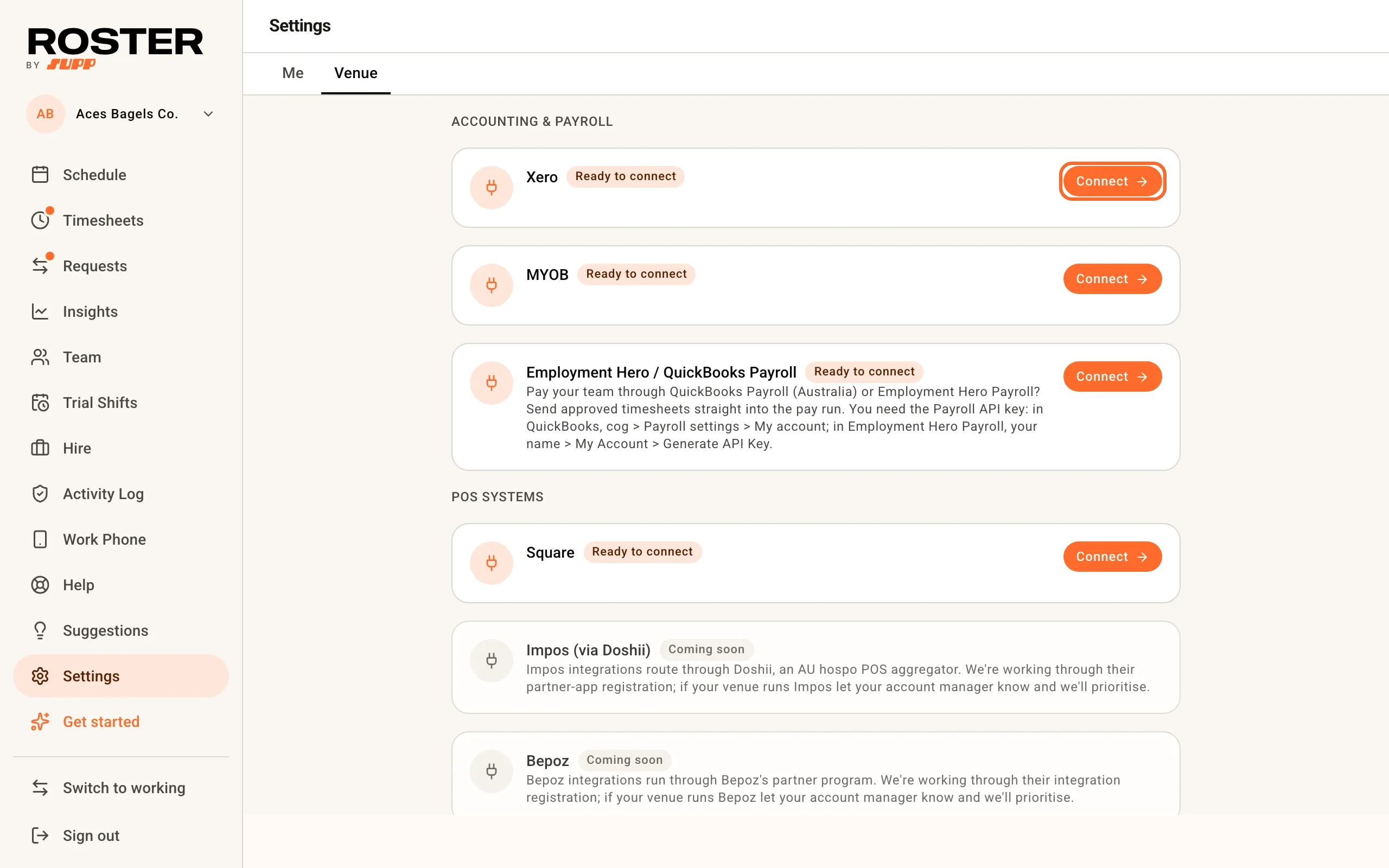
Next to Xero, click Connect. Sign in to Xero, pick the organisation that runs this venue's payroll, and allow access. You land back in Roster with "Xero connected".
2. Choose the defaults for new employees
On the Map your team to Xero employees card that appears:
- Pay calendar for new employees - everyone you add to Xero from Roster starts on it, so they can be paid without a trip into Xero. Pick your usual weekly or fortnightly calendar.
- Default ordinary rate - the Xero pay item for anyone whose own rate isn't set yet, so their shifts still cost correctly on the schedule.
3. Bring your team across
Starting fresh in Roster? Import them. On Team, hover Invite and choose From Xero, then Read from Xero. Your active Xero employees appear in a review table with their pay rates; nothing is sent until you choose Send invites or save them for later.
Already have your team in Roster? Pair them instead. Back on the Map your team to Xero employees card, Pair all matches everyone whose name is the same in both; pick the rest from Select Xero employee and click Pair. Pairing pulls each person's ordinary rate from Xero.
Anyone not paired is skipped at export, and the export names them, so nobody goes missing quietly.
4. Weekend and public holiday pay items
Roster moves Saturday, Sunday and public holiday hours onto their own Xero pay items. On the Weekend and public holiday pay items card, check the item it found for each ordinary rate (Auto means it matched by name). Where there isn't one, Create in Xero makes it, or choose Same as Mon-Fri rate if the rate doesn't change. Then Save pay items.
Skip this and anyone who worked a weekend or public holiday is held back from the export until you pick an item - Roster won't quietly pay penalty hours at the weekday rate.
5. Leave types
On Sync leave to Xero, match each Roster leave type to its Xero leave type, then Save mapping. Everything starts as Don't sync. Once mapped, approved leave for paired full- and part-time staff is filed in Xero the moment you approve it.
Leave balances stay in Xero - Roster doesn't read them back, so check a balance there before approving a long request.
6. Cost centres (optional)
Only if your Xero organisation tracks wages by cost centre. On Cost-centre tracking, pick a Venue default and, if areas cost to different centres, one per area. Then Turn on cost-centre tracking. Details on the Xero page.
Done
From here, payroll is the same every cycle: Complete a pay run with Xero. New starters go through Add a new employee.