Roster treats every shop as its own venue. That keeps each team, schedule and pay run clean, and it means a group grows one venue at a time rather than one giant roster.
Step by step, with screenshots: Set up your organisation.
Each shop is a venue
Add a venue from the venue switcher at the top of the schedule and flick between them. Each venue has its own team, schedule, timesheets, settings, integrations and subscription. Billing is per venue and priced by team size: owners, managers and staff all count, and a person who works at two venues counts at each one. A quiet second site whose team fits the free band costs nothing.
One login, every venue
Invite the same person at each venue with the mobile or email they already use with Roster, and that venue is added to the login they have - no second account. If you run the other venue too, tick it under Also add to on the invite form and one Send invites them at each venue. They get one message per venue and accept each. The steps are in Add a new employee. They switch venues from the switcher in their app, and their shifts, clock-in and timesheets show the venue they have open. Managers who run several shops switch the same way.
Your team across venues
Once your venues are in an organisation, open Settings, Organisation and switch to Team.
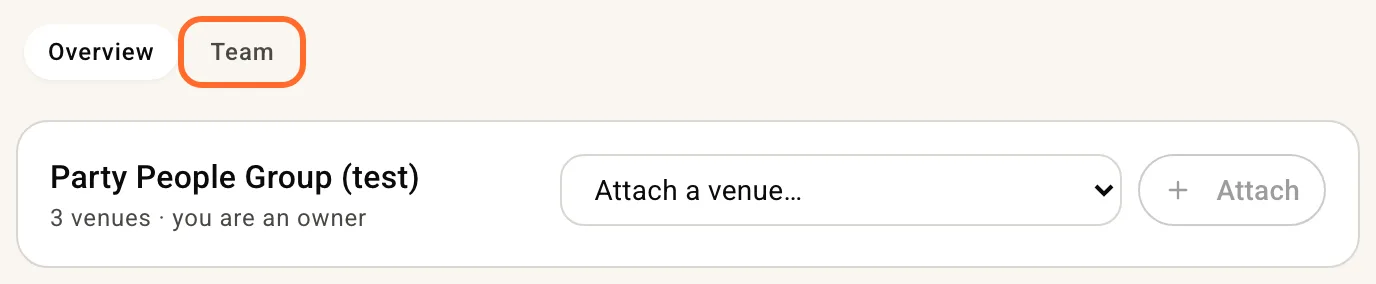
It lists everyone across your venues once, with a tick per venue.
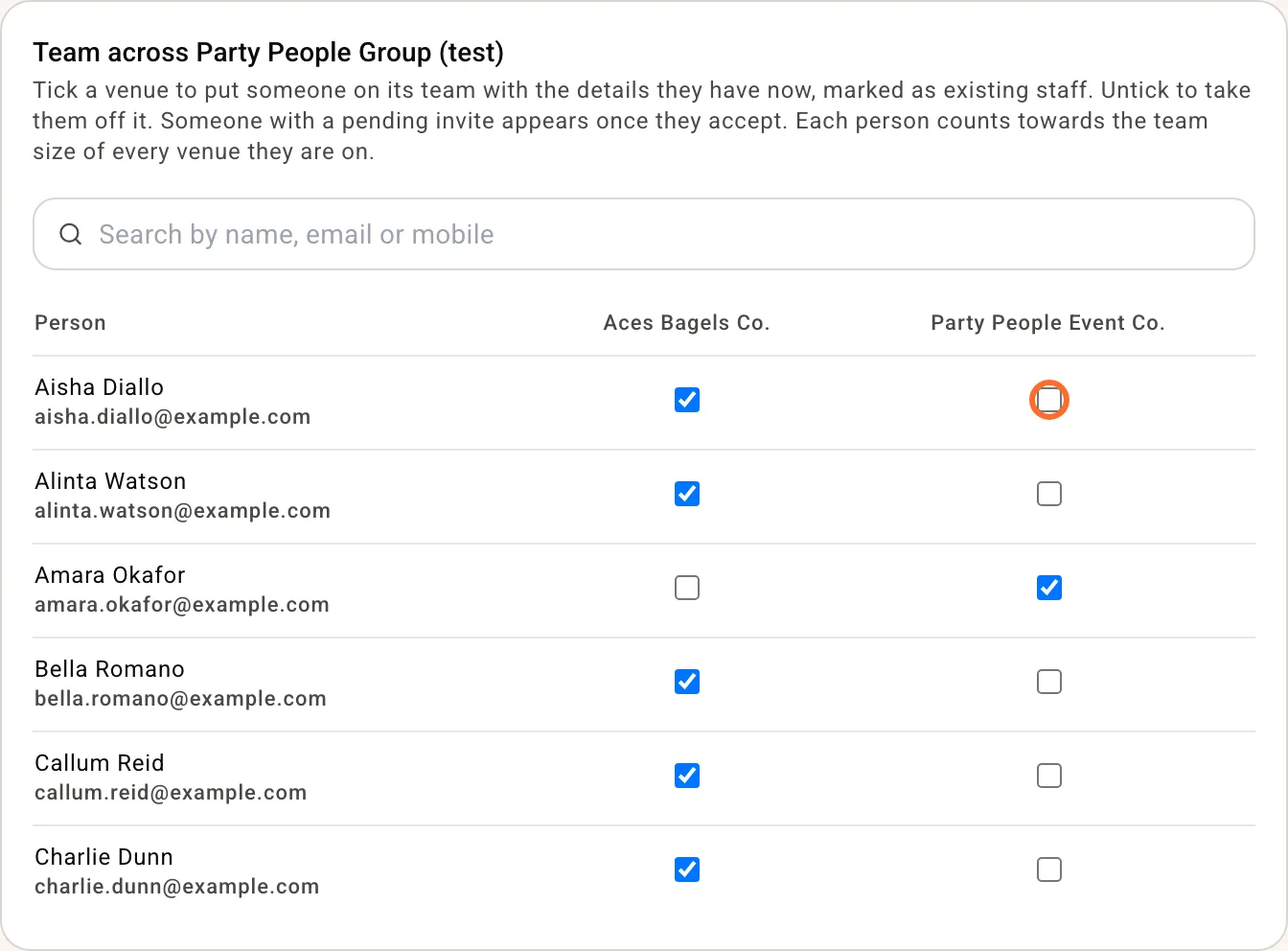
Tick a venue to put someone on its team straight away, with the pay, award, employment type and contact details they have at the venue they came from, marked as existing staff so they are not asked for payroll details again. They get one text or email saying they have been added, and the venue shows in their app. Untick a venue to take them off it; any upcoming shifts they held there go back to unfilled. Owners stay on their own venue. Someone with a pending invite appears once they accept. Pay can differ by venue, so change their rate on that venue's Team page after adding, and pair them in that venue's payroll settings, which stay per venue.
Hours across your venues
On a venue's own Schedule, anyone who also has shifts at another venue you run gets a second line under their hours, such as 34h all venues. The first line is still that venue's hours and cost. Hover over the person to see their hours venue by venue. Someone who works at one venue only looks the same as before.
Overtime counts every venue too. The Overtime count in Schedule health, the warning on shift cards and the list in the Publish window all check a person's week across your venues against the weekly overtime threshold they have at the venue you are on. A warning that takes in another venue says so: "42.0h scheduled this week across your venues".
The shift form shows the same thing under Worker once you pick someone, on a phone as well: This week: 22h here, 34h all venues.
Only venues you run as an owner or manager are counted. Hours are paid hours, with unpaid breaks taken off, and a shift at another venue counts on the day it starts. Draft shifts count towards the hours and the card warning; the Overtime count covers published shifts. Shifts at your other venues are read when the schedule loads, so reload to pick up a change made there. If one of your other venues cannot be read, a notice at the top of the schedule says so, and until you reload the hours and overtime on it count that venue only.
The All venues schedule
Managers of two or more venues get an extra entry in the switcher: All venues. It shows every person once, with their shifts at every shop, so you can read the week across the group and see when someone is rostered at two shops at the same time. It shows the clash; it does not yet stop you making it. Narrow the view to a few venues with the venue filter.
Click a shift, upcoming or past, to change it without leaving All venues: put a person on it, change the time, role, area, break or notes, or delete it. The change is made at the venue the shift belongs to, and you pick from that venue's own team. Shifts on the Supp marketplace, trial days, and shifts that have a timesheet open as a summary instead, with a button that opens that venue's schedule on the same week and view. If the shift is published and has not ended, the person on it is told when you change its time, role or person, or delete it, as on the venue's own schedule. A shift that has ended tells nobody, unless you move it to a time still to come. Hours are added at the venue: for a shift that has ended and still needs hours, the form tells you to switch to that venue and open Timesheets. There, Add timesheet (the + on a phone) records the hours. See also Shifts nobody clocked into.
To add a shift, hover an empty cell in the week and press the + (on a phone, tap the cell). In By area the shift is added at that area's venue, in that area. In By member it is added for that person at the venue whose team they are on; if they are on more than one of the venues on screen, you are asked which venue. The Unfilled row asks which venue too, unless the venue filter is showing only one. The new shift is a draft until you publish, and starts with that venue's own unpaid break setting. In By area, an area with no shifts that week is hidden: press the link under the grid that shows areas with no shifts to bring it back. A venue with no areas has no row of its own in By area, so add its first shift of a week from By member.
All venues shows a row for each person on a team. A shift you hold for someone who has been invited and has not joined yet sits in the Unfilled row in By member until they join; open it to see who it is for.
Offer a shift to the team, post one to the Supp marketplace or set up a trial day on the venue's own schedule.
Switch the week to By area to read it one venue at a time. Each venue's areas sit under a heading with the venue's name. Click a heading to fold that venue away; while it is folded, each day shows how many shifts it holds.
In By area, on Week or 2 Weeks, drag a shift to another row to change its area, or to a row of another venue to move the person there. A folded venue has no rows to drop on, so unfold it first. A shift moved to another venue lands as a draft, so publish to tell them. If they are not on that venue's team yet, you are asked to confirm first, because it adds them to that venue's headcount. Shifts with a timesheet, on the Supp marketplace, or part of an event stay where they are.
Notices across your venues
On Notices, New post shows Also post to with a tick for each of your other venues, so one post reaches every team. Each venue keeps its own copy and its own record of who acknowledged, and you can edit or remove it at every venue or just one. More in Notice board.
Clocking in
Nobody can be clocked in at two venues at once. A worker with a shift open at one venue has to clock out before they can clock in at another.
Timesheets across your venues
Managers of two or more venues get a switch at the top of Timesheets: This venue or All my venues. All my venues lists every venue's timesheets for the period, grouped by venue, with the pending count for each. Approve, edit or discard a timesheet from there and it is recorded against the venue it belongs to, exactly as if you had done it on that venue's own page. The choice is remembered for you, not for the venue, so another manager at the same venues keeps their own.
Payroll and integrations
Payroll stays per venue: export venue by venue, and connect each venue's own payroll and point of sale. On All my venues, each venue's section has an Export at button that opens that venue's own Timesheets page for the same period, where its export, missed shifts and Add timesheet live. A worker on two venues appears under each venue with the hours they worked there.