Everything here happens on Shifts.
See your shifts
Upcoming lists the shifts you're rostered for. Available lists open shifts you can pick up. Past shows your recent ones.
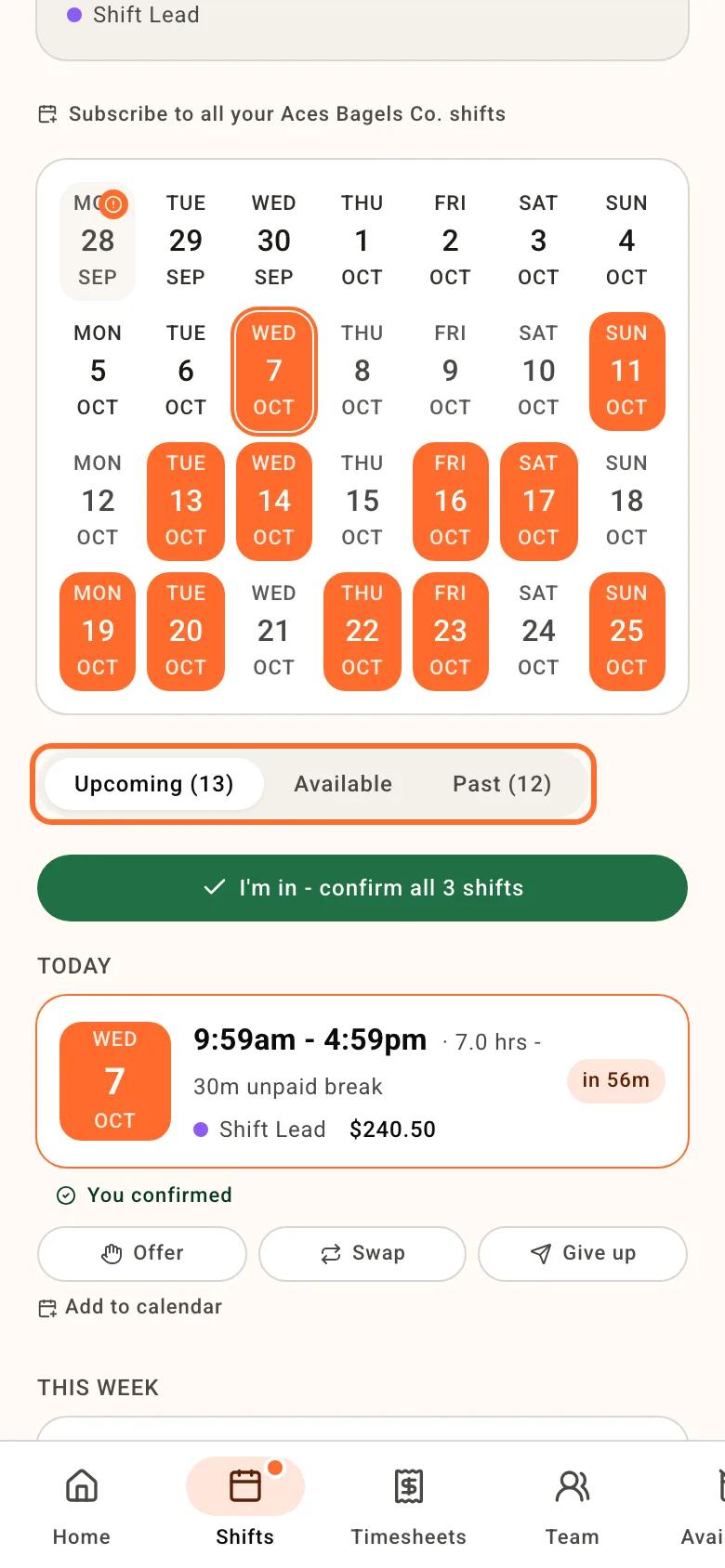
Shifts only show once your manager publishes the week. If a week looks empty, it may not be published yet, so check with your manager before you assume you're off.
To get shifts into your phone's calendar, tap Add to calendar under a shift, or Subscribe to all your shifts at the top.
Confirm a shift
If your manager asks you to confirm, a new shift shows I'm in and Can't make it. Tap I'm in so they know you've seen it, and the shift then shows You confirmed. Several waiting? Tap I'm in - confirm all at the top of the list.
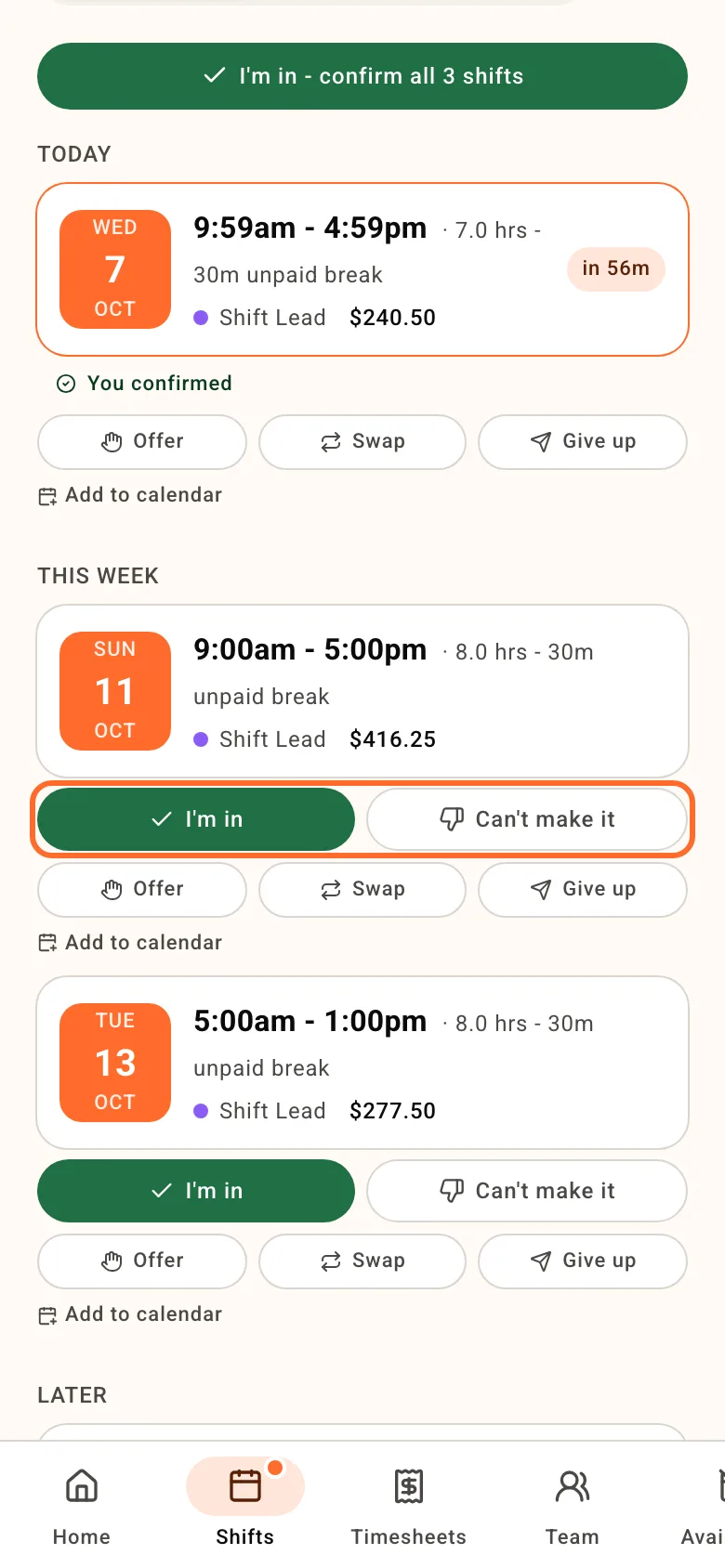
Confirming doesn't clock you in. The same shifts also show on Home with Confirm and Decline.
Can't make it
Tap Can't make it and pick a reason: Sick, Family / personal, Double-booked, Transport / travel or Something else. Tapping a reason sends it, so tap Cancel if you change your mind first.
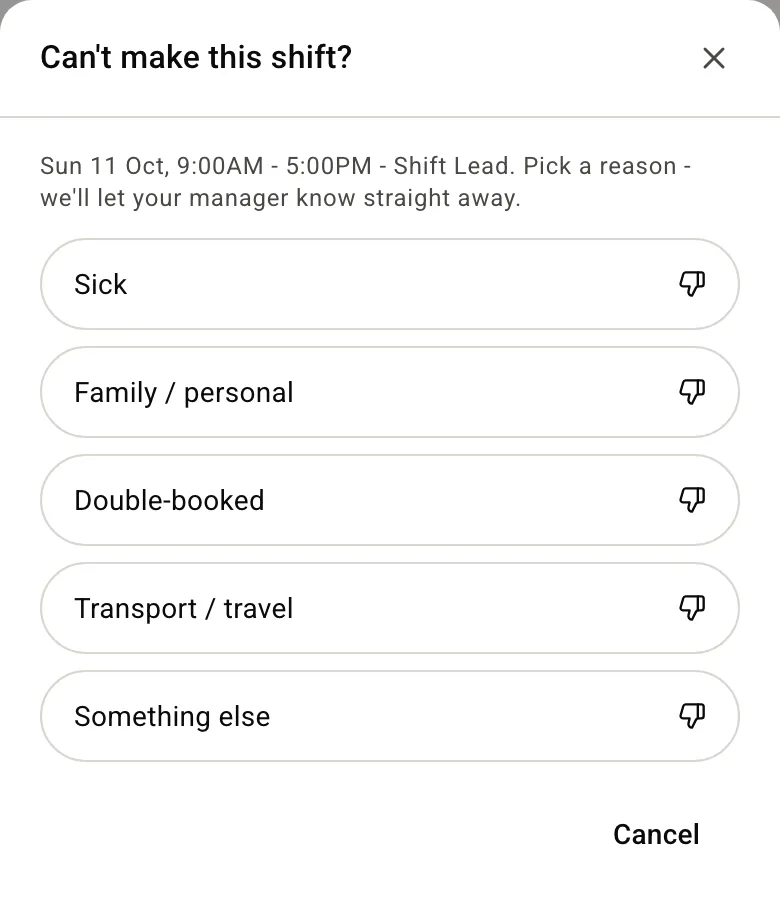
Your manager is told straight away and the shift comes off your roster, so they can fill it.
Picked Sick or Family / personal? A note offers Request personal leave. Tap it if the day should count as leave: the leave form opens with the date filled in. Saying you can't make it doesn't book leave on its own.
Already tapped I'm in? Use Give up or Swap below, or talk to your manager.
Swap or give away a shift
Under each upcoming shift you'll see some or all of Offer, Swap and Give up, depending on your venue.
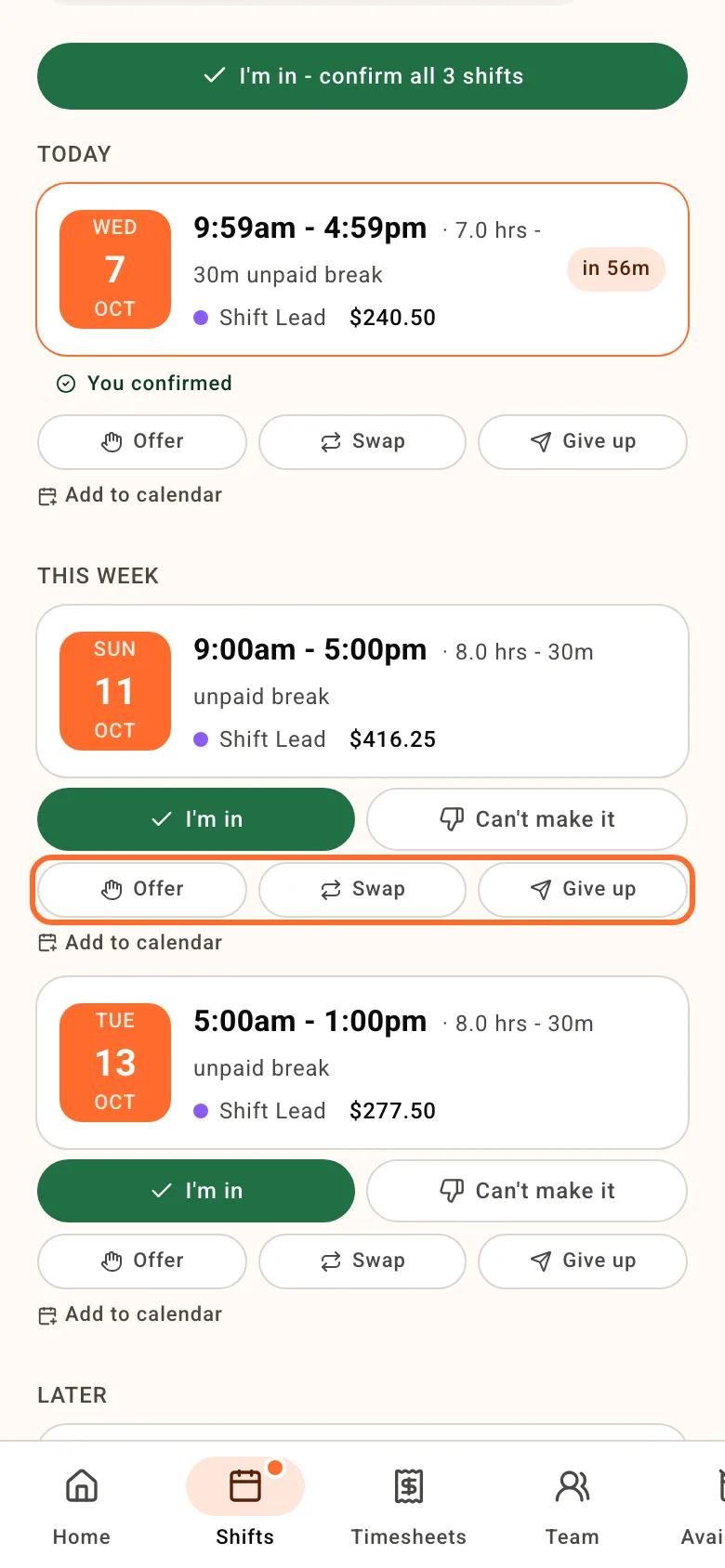
- Swap: pick one of a teammate's shifts in the next 3 weeks and tap Send to manager. Your teammate taps Accept or Decline on their shift first, then your manager approves.
- Give up: asks your manager to take the shift back. Add a reason if you like and tap Send request. It stays your shift until they approve.
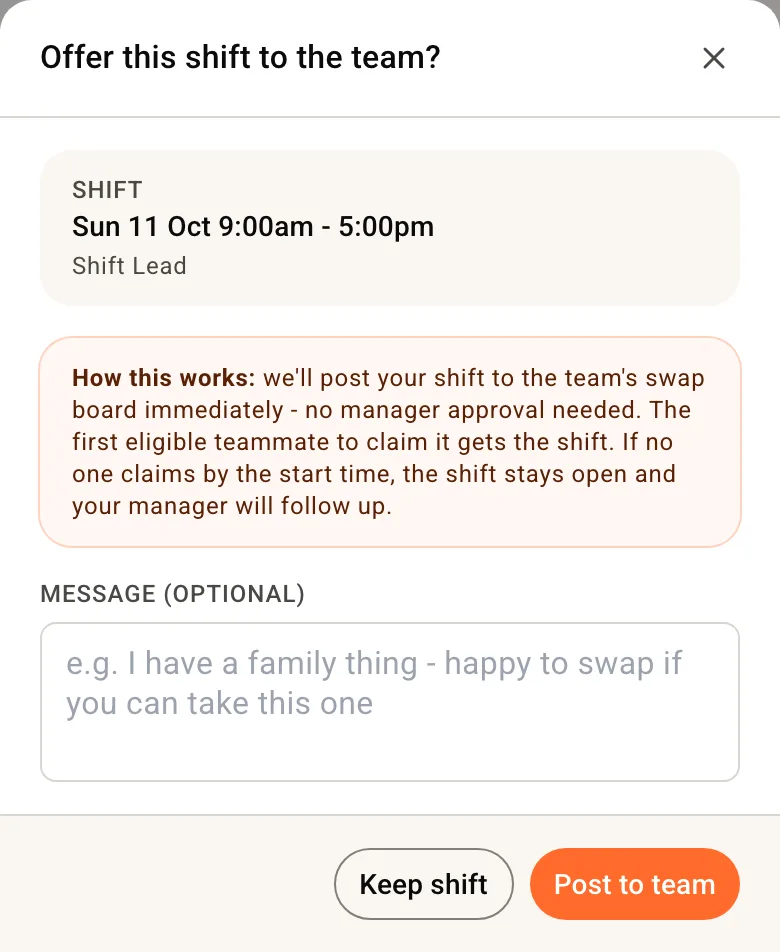
- Offer: posts the shift straight to the team with Post to team, no manager approval. It comes off your shifts and the first teammate to claim it gets it. Changed your mind? Find it on Available and tap Take it back before anyone claims it.
Pick up an open shift
Open Available and tap Claim shift. First to claim gets it, and it moves to your Upcoming shifts. You can't claim a shift that clashes with one you already have.
When a manager opens a shift, you may also get a text or email. Its link opens the shift: tap I'm in - claim this shift to take it.