Your venue decides how you clock in: on your own phone, on a tablet at work, or either. If Home says your venue doesn't allow clocking in from your own phone, use the tablet.
Clock in
On the day of your shift, open Home. Your shift shows at the top with a Clock in button. Tap it once.
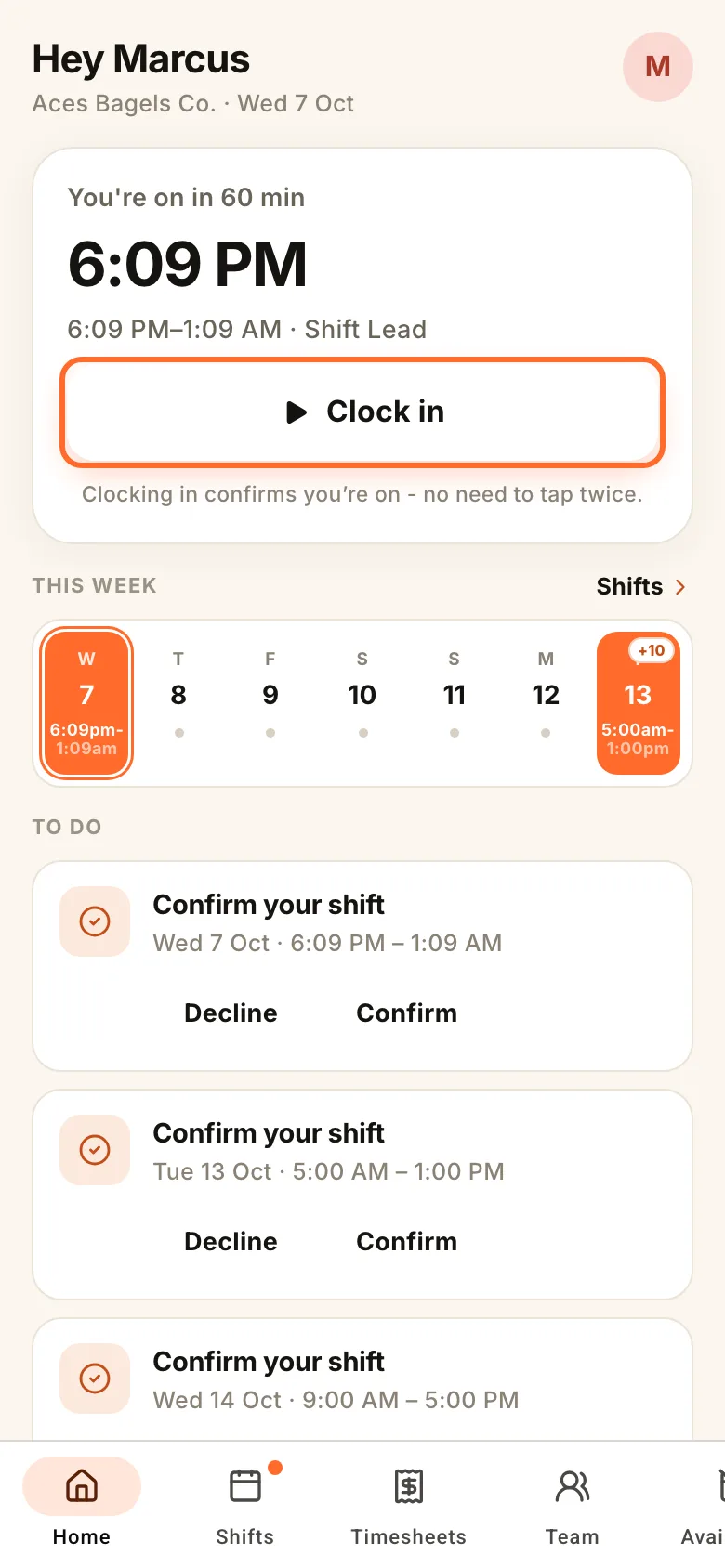
- Button greyed out? It's too early. The message under it says what time you can clock in from, and the button turns on by itself.
- Running late? You can always clock in.
- Your phone asks for your location? Clocking in still works if you say no. If you clock in away from the venue, Roster notes it for your manager.
Breaks
While you're on shift, Home shows Clock out and Start break. Tap Start break when you stop, and End break when you're back.
A break of 20 minutes or less goes on your timesheet as a paid rest break. A longer one is an unpaid meal break. If you don't tap a break at all, the unpaid break on your roster is taken off when you clock out.
Clock out
Tap Clock out when you finish. If you're still on a break, clocking out ends it too.
- If your times are close to your roster, your timesheet goes to your manager by itself and Home says Timesheet submitted.
- If not, Home says That's a wrap. Tap Submit timesheet to send it to your manager.
Clocked out by mistake? Tap Clock back in on Home. It works for up to 3 hours, while your shift is still running, and keeps your original start time.
Forgot to clock out
If Roster has your email, it emails you once, soon after your shift should have ended. Tap Clock out now in the email, then Clock out now again on the page that opens.
Still clocked in about 12 hours after your shift ended? Roster clocks you out at your rostered finish time. Open Timesheets: the shift is under Needs confirming. Tap Confirm hours if the times are right, or Edit times to fix them (if your venue lets you).
Forgot to clock in
If your shift has started and you haven't clocked in, Roster may text you a link to clock in.
Already finished? On Timesheets, tap Add. Pick the shift you worked from the last 14 days, enter your times and tap Submit timesheet. Worked a day that isn't listed? Tap Worked a day that's not listed?
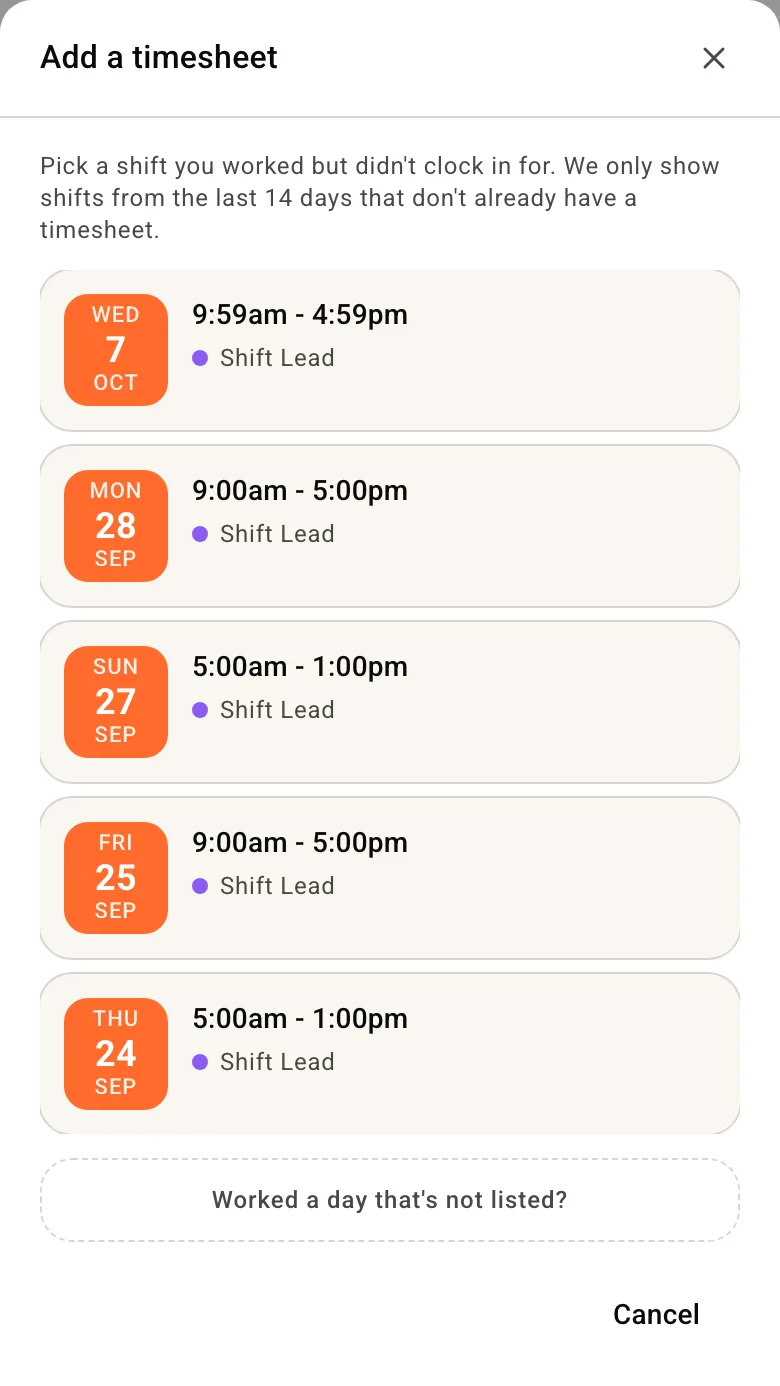
No Add button? Your venue records hours on the tablet only. Ask your manager to fix the times.
Called in when you're not rostered
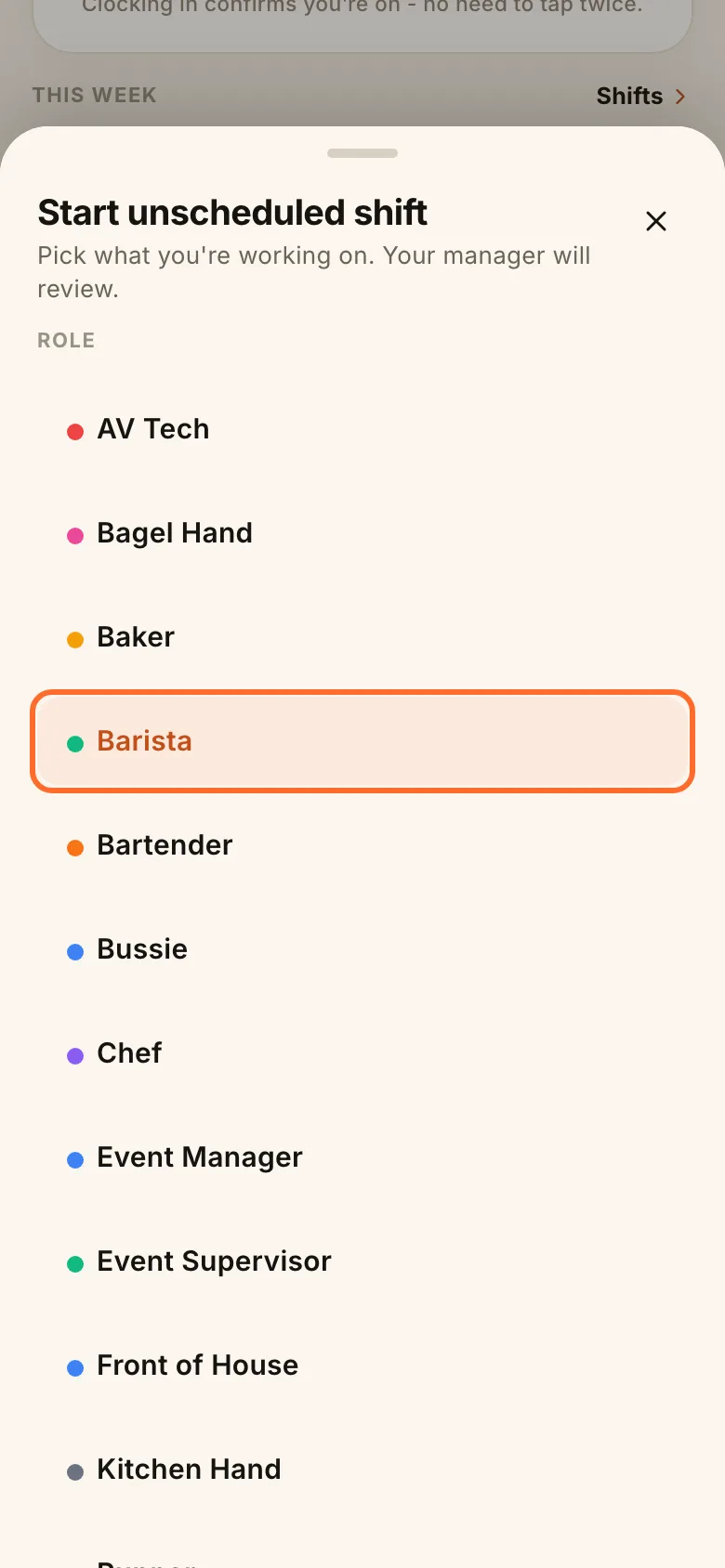
On Home, tap Start unscheduled shift (or Start an unscheduled shift if you have a shift later). Pick what you're working on and tap Clock in at the bottom. Your manager reviews it.
Using the tablet at work
If your venue has a tablet set up for clocking in, find your name and tap it, then confirm. Tap your name again for Start break, End break and End shift.
If your venue uses PINs, you'll make one the first time you tap your name. You can also set it in Profile under Kiosk PIN. Forgot it? Ask your manager to reset it.
More detail in Kiosk mode.