About five minutes, once, on your phone.
1. Open your invite
Your venue sends you a text or an email. Tap the link in it (in the email, it's Accept invite).
You land on a welcome page with your venue's name. Tap Continue:
- Your manager added your email? You're signed straight in.
- Only your mobile number? You land on the sign-in page with your number filled in. Tap Send code/ link and enter the code we text you.
Roster runs in your phone's browser, so there's nothing to download. If your browser offers Add Roster to your phone, take it. Roster then opens from your home screen like an app.
Link not working, or it says it has expired? Ask your manager to send it again.
2. Fill in your pay details
You land on Get started. The first box lists what your venue needs to pay you: Personal details, Tax file number, Superannuation and Bank details. Tap any of them.
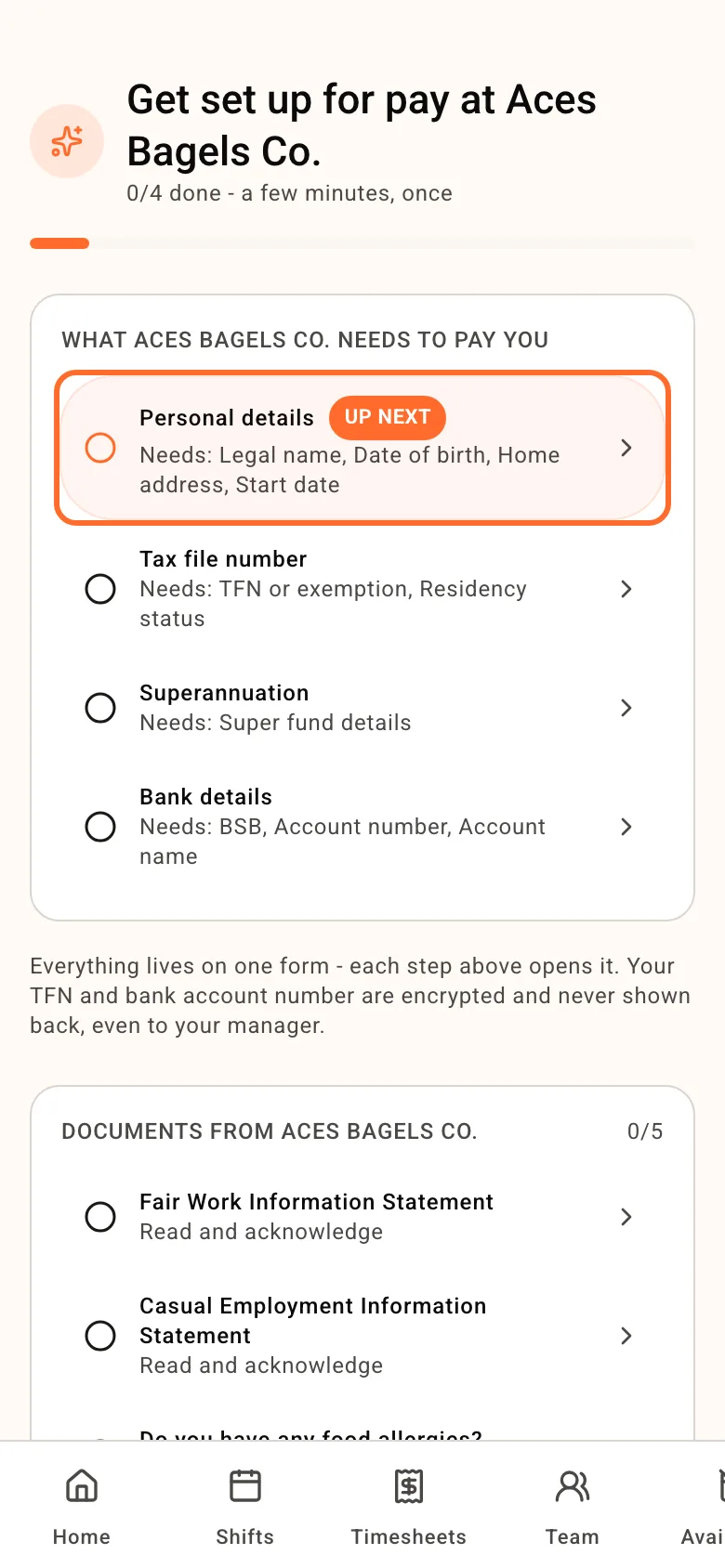
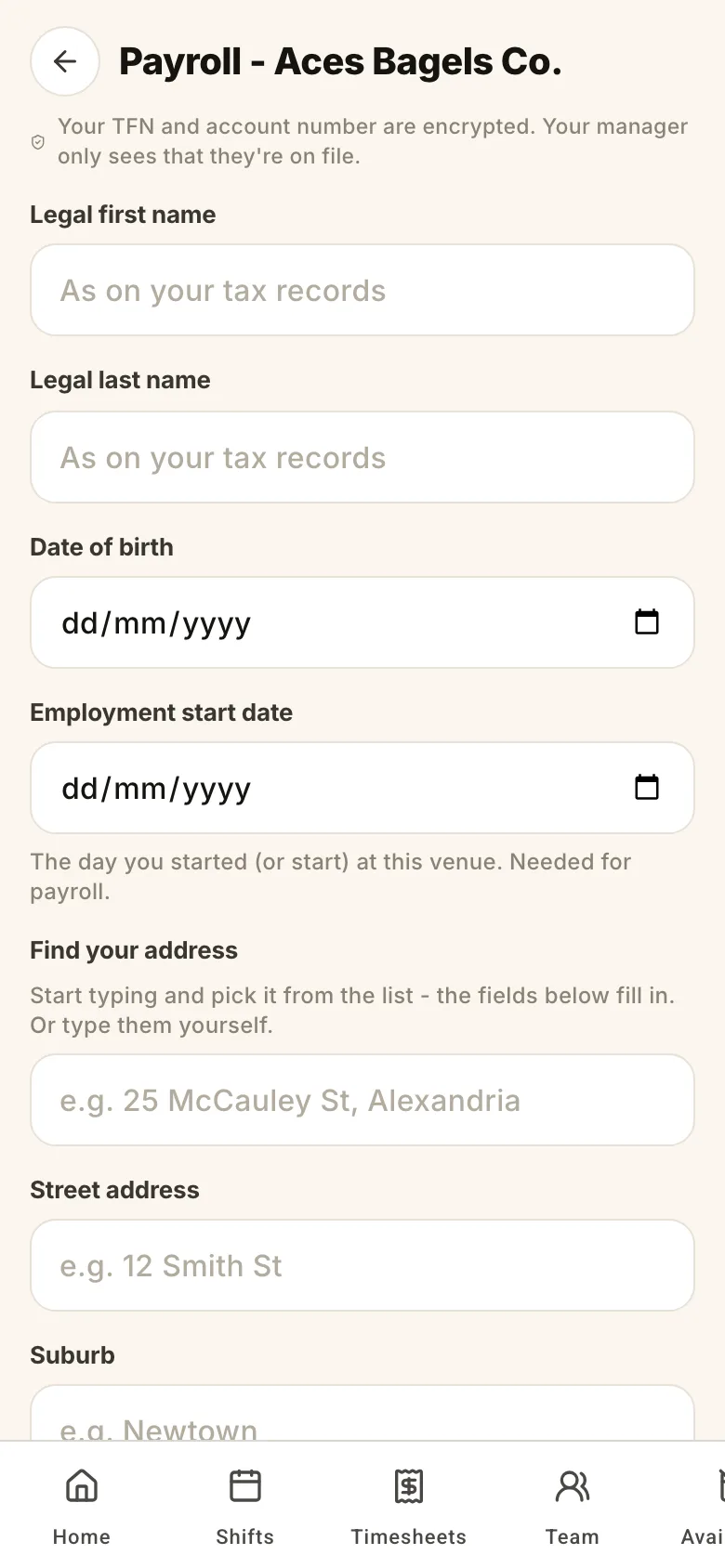
They all open the same form. Fill it in from top to bottom, then tap Save at the bottom. Missing something, like your super member number? Save what you have and come back. Every save needs your Residency for tax and the tick under Declaration.
Your TFN and bank account number are encrypted, and your manager only sees that they're on file.
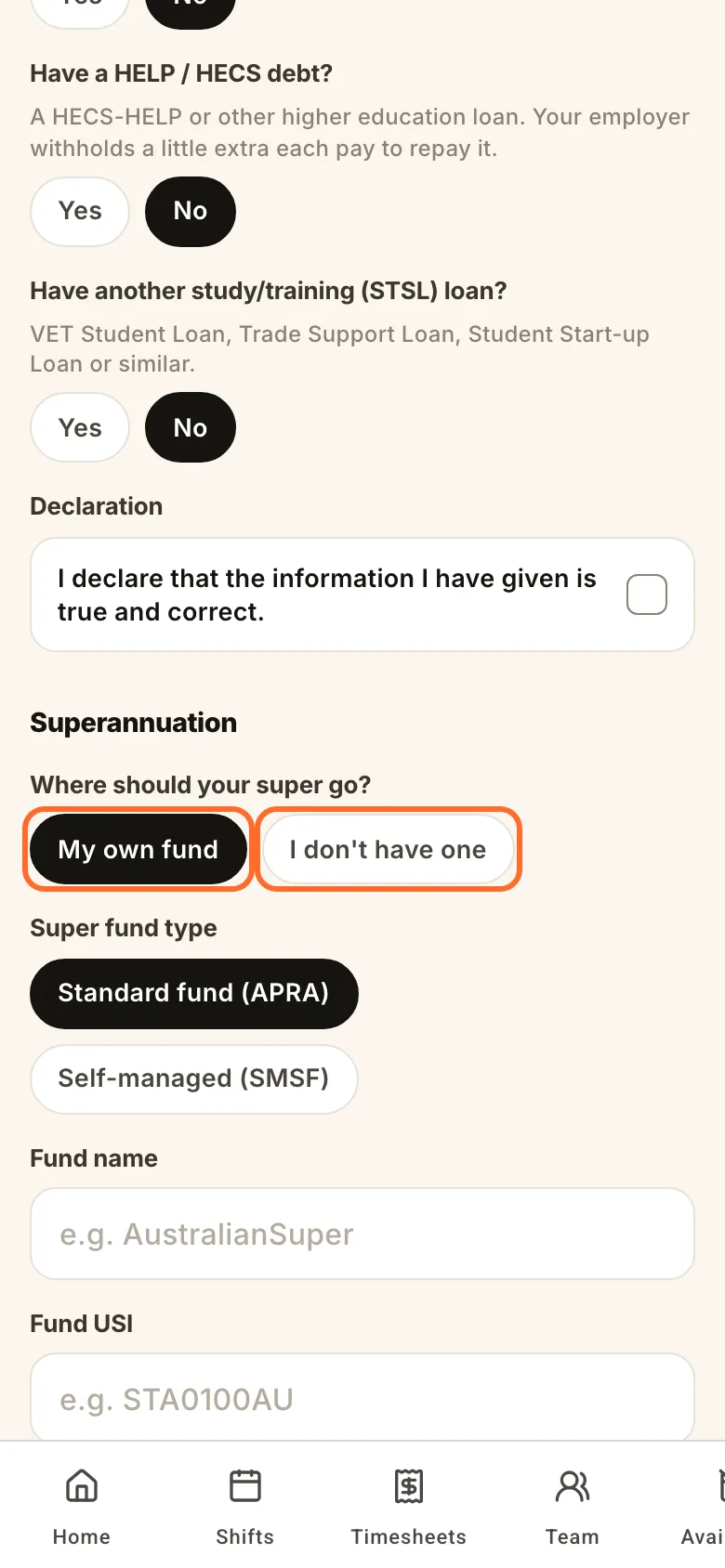
For super, pick My own fund and enter its details, or I don't have one. If you don't have one, your venue asks the ATO whether you already have a super account from a past job and pays into that. Some venues also offer their own default fund here.
3. Go through your venue's documents
Under Documents from your venue, tap each item. It might be a document to read, one to sign by typing your name, a question to answer, or something to upload to your profile.
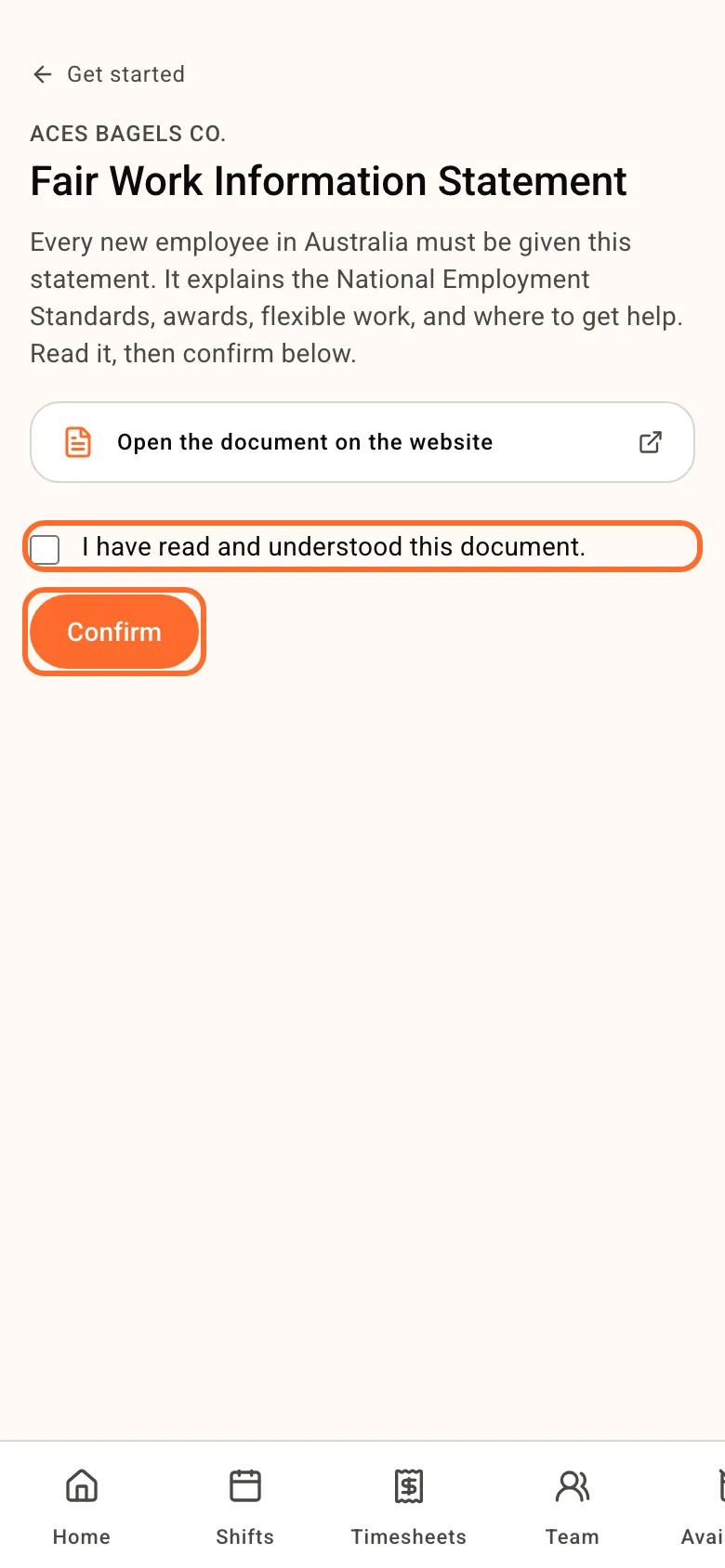
For a document to read, open it with the link at the top and read it. Then tick I have read and understood this document. and tap Confirm.
Each item gets a tick on Get started when it's done. Once your pay details are in, Go to your shifts appears at the top. When the documents are done too, the page says You are all set for pay.
Further down, Make work easier has optional extras: a profile photo, your availability and an emergency contact.
Signing in later
Go to sign in, tap I'm a worker, enter your mobile number or email and tap Send code/ link.