Out of the box, staff clock in from their own phone or a browser, up to 2 hours before their shift. Change that once and it applies to every shift at the venue.
1. Choose where they can clock in
Open Settings, Venue, Timesheets. Under Where your team can clock in:
- Clock in from their own phone - from the Roster app on their phone. Off also stops clocking out and breaks from the phone, so nobody clocks off from the car park.
- Clock in from the web - from a browser on a laptop or desktop. Roster tells the two apart by the browser, so an iPad on Safari, or a phone asking for the desktop site, counts as web.
- Managers are exempt - managers and owners keep their own-device clock-in when the switches above are off. Leave it on, so someone can still record a shift if the tablet dies.
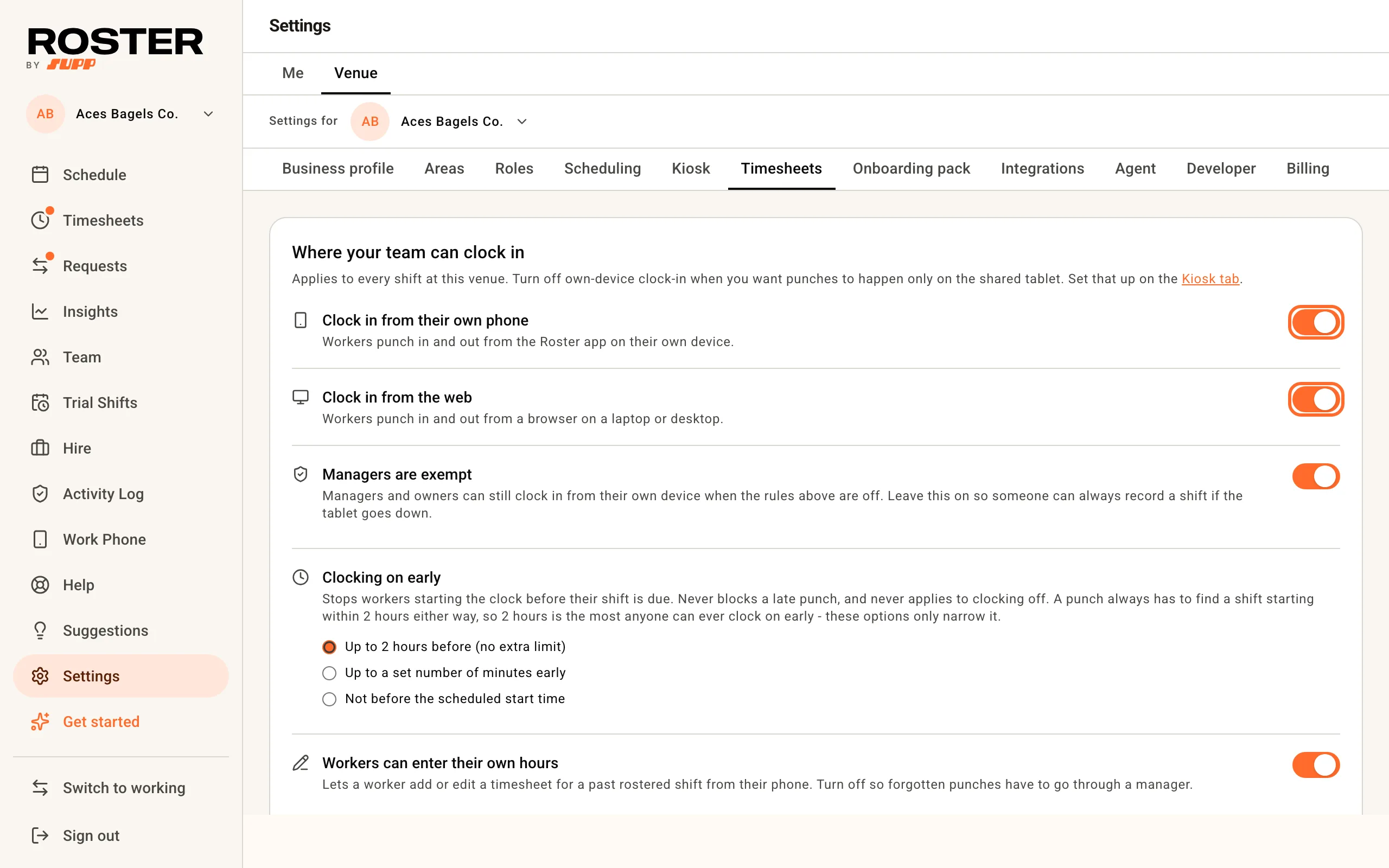
Turning both phone and web off means staff can only clock in on a kiosk tablet, so set one up first (step 4).
2. Limit early starts
Clocking on early has three options: Up to 2 hours before (no extra limit), Up to a set number of minutes early (up to 120), or Not before the scheduled start time. It never blocks a late punch, and never applies to clocking off.
3. Decide about forgotten punches
- Workers can enter their own hours - they can add or fix a timesheet for a past rostered shift from their phone, up to 14 days back. Off, a forgotten punch has to come to you.
- Workers can submit unscheduled shifts - they can send in hours for a shift that was never on the roster.
Whichever you choose, nothing they type in counts until you approve it.
Further down:
- Where the venue is sets the spot and radius Roster checks phone punches against. A punch from further away is flagged on the timesheet for you to look at. It is never blocked.
- Submit matching timesheets automatically sends a timesheet straight to your approval queue when both punches are close to the roster, so the worker doesn't have to confirm it. How close is your call, 60 minutes by default.
Click Save changes at the bottom. Nothing on this tab saves until you do, except Require a PIN on the kiosk, which saves as you switch it.
4. Add a shared tablet (optional)
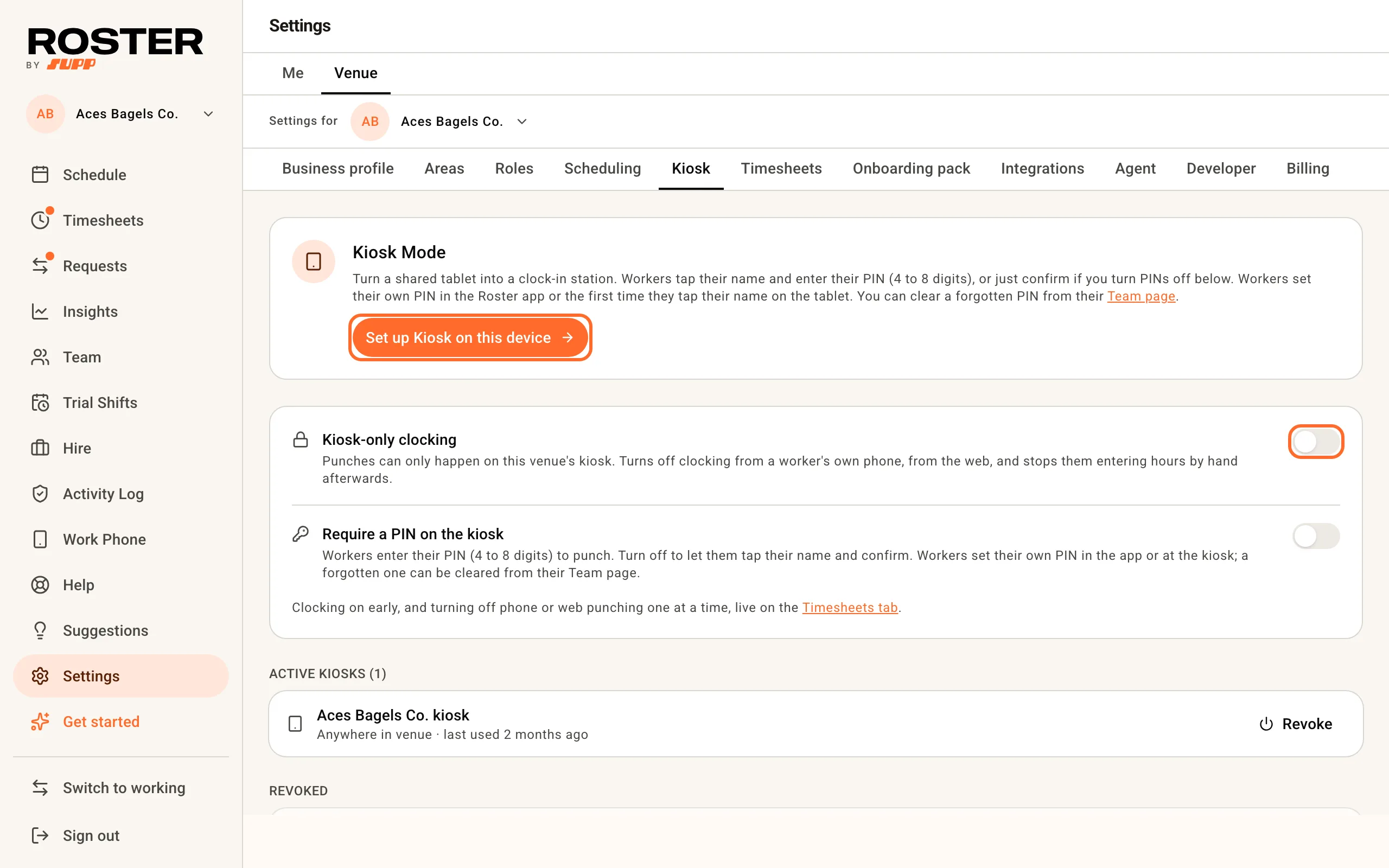
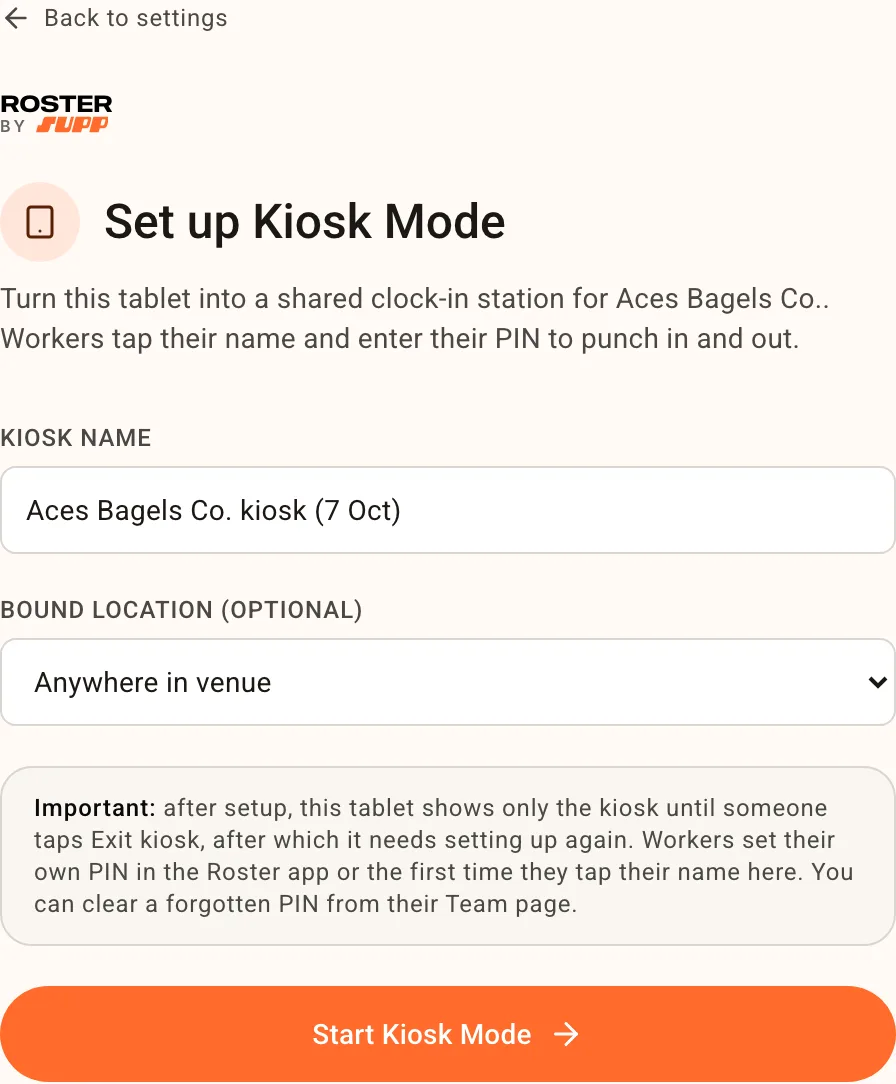
On the tablet itself, open Settings, Venue, Kiosk and tap Set up Kiosk on this device.
Check the Kiosk name, pick a Bound location if you want one, and tap Start Kiosk Mode. The tablet now shows the clock-in screen until someone taps Exit kiosk.
Staff tap their name to clock in, take breaks and clock off. Back on the Kiosk tab:
- Require a PIN on the kiosk makes each person enter their own PIN before the punch. They set it themselves; you can't see it.
- Kiosk-only clocking turns off phone and web clock-in and hand-entered hours in one go, so the tablet is the only way to record hours. It asks you to confirm first.
- Revoke next to a tablet under Active kiosks stops it working, for a lost or replaced tablet.
PINs, refused punches and keeping the tablet safe on the counter are covered in Kiosk mode.
Related
- Kiosk mode - the tablet in detail
- Approve timesheets - what happens to the hours next