A log book is the day written down by whoever ran it: what the roster got wrong, who stood out, what the next manager needs to know. In Roster it sits on the day it is about, so last Friday's comment is in front of you when you build this Friday.
Owners and managers write it and read it. Staff never see it, and nobody reads a note about themselves.
1. Write the day's log
Open the Schedule and move the pointer over the day's column header. A pen appears in its top corner. Click it.
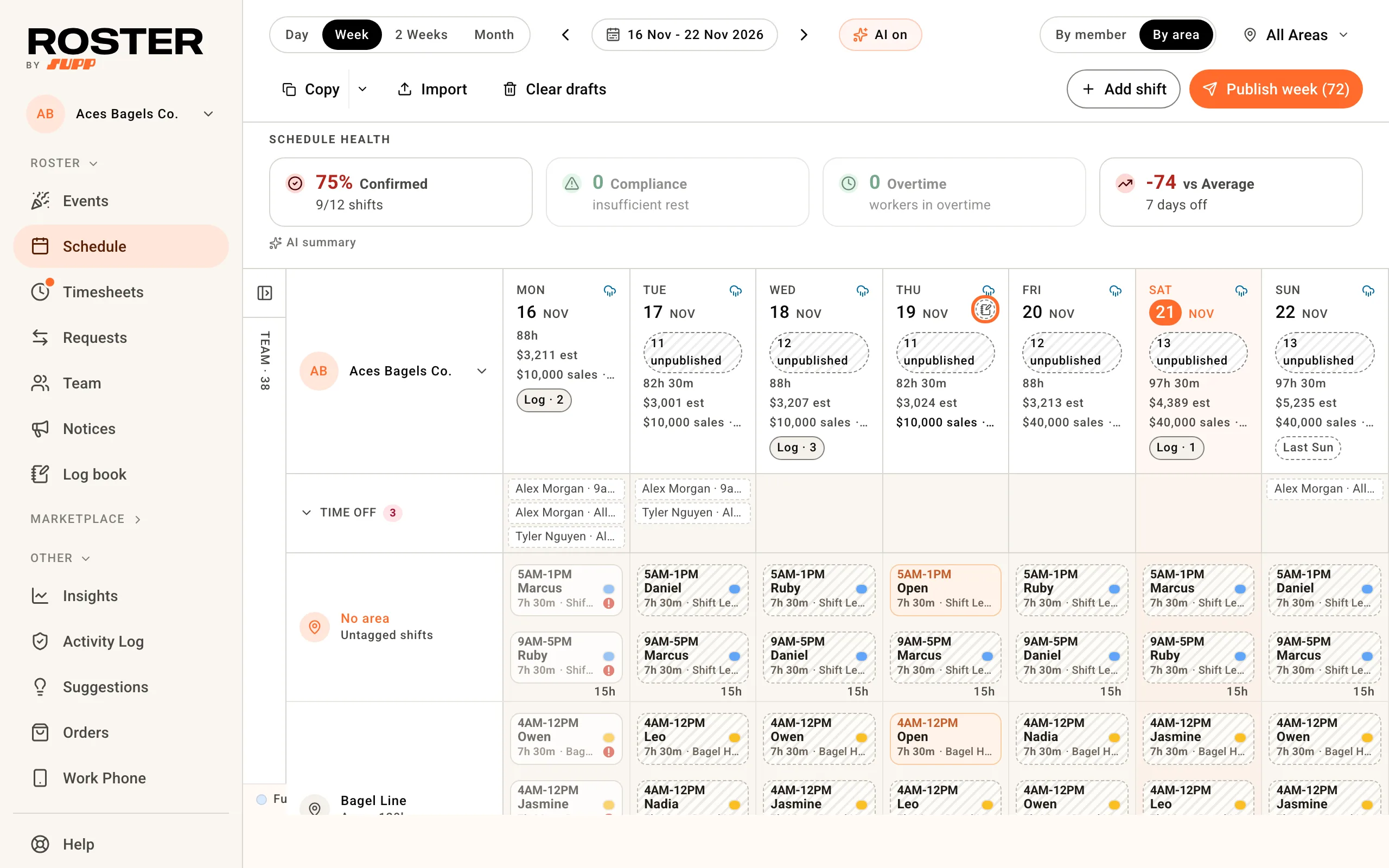
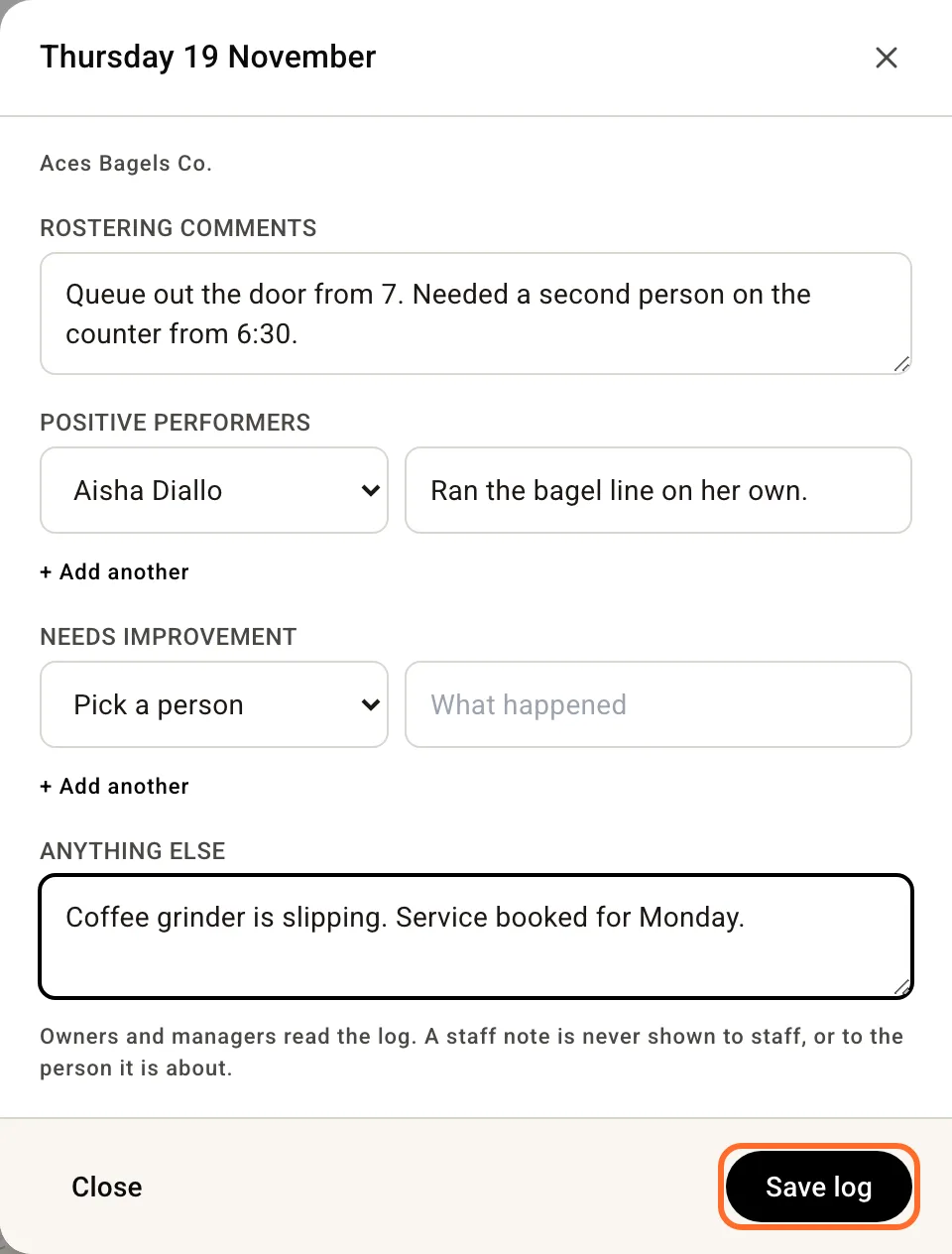
The form has four boxes, and every one is optional:
- Rostering comments - about the day. "Needed a second barista from 6:30."
- Positive performers - pick a person, then say what they did well. The list shows who was on that day first.
- Needs improvement - pick a person, then say what happened.
- Anything else - handover: maintenance, complaints, stock.
+ Add another adds a second person under either heading. Click Save log. Each line you filled in is saved with your name and the time.
A second manager on the same day adds their lines under the first. Nobody overwrites anyone. A log is written for today or a day that has passed.
2. Read it on the Schedule
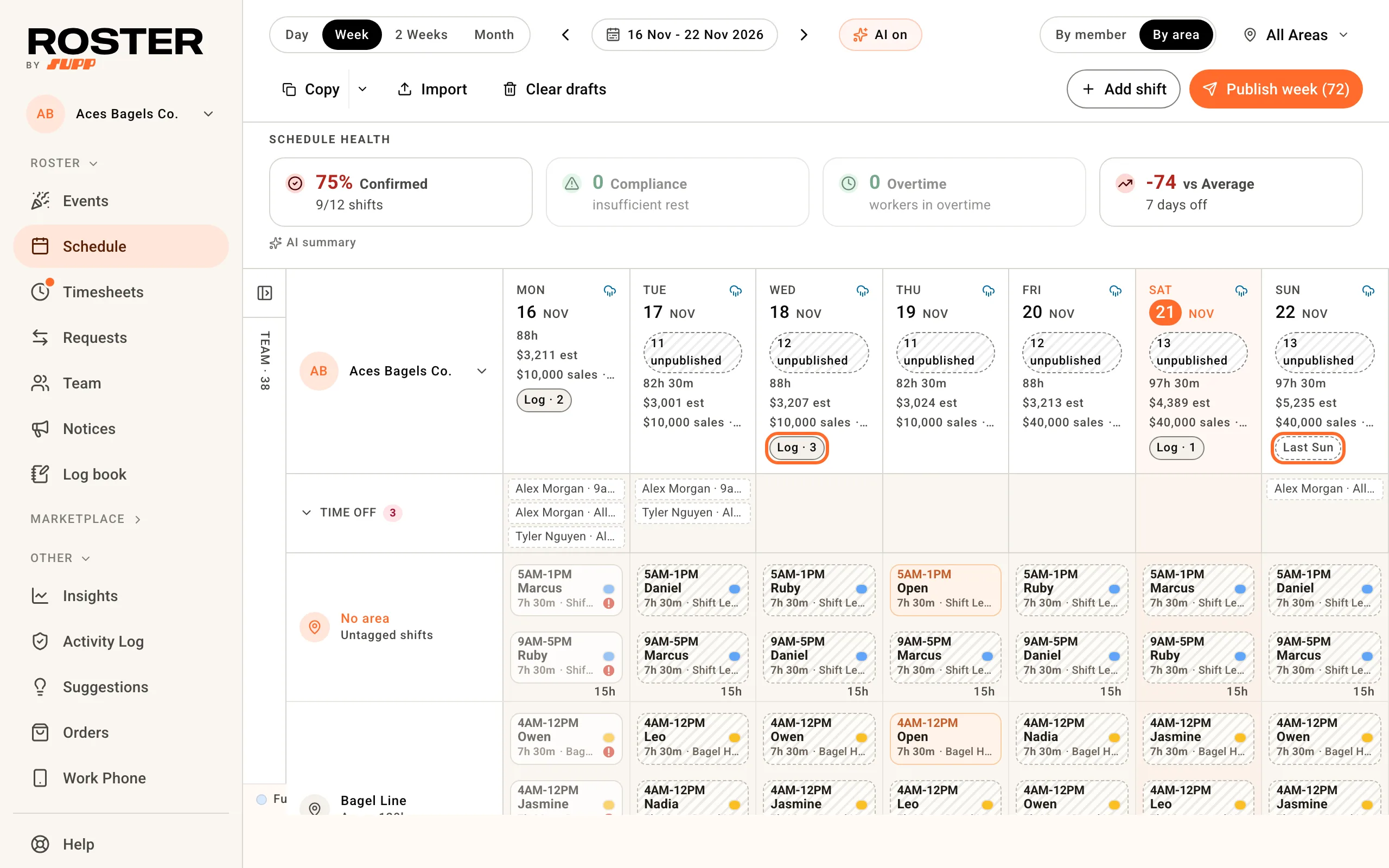
A day with a log shows Log and a count on its column header. Hold the pointer over it to read the rostering comments and the anything-else lines. Notes about a person never show there. Click it to open the day.
A day still ahead shows Last Sun (or whichever weekday) when that weekday had a rostering comment last week. Click it to read the comment while you build the roster.
3. Read the week
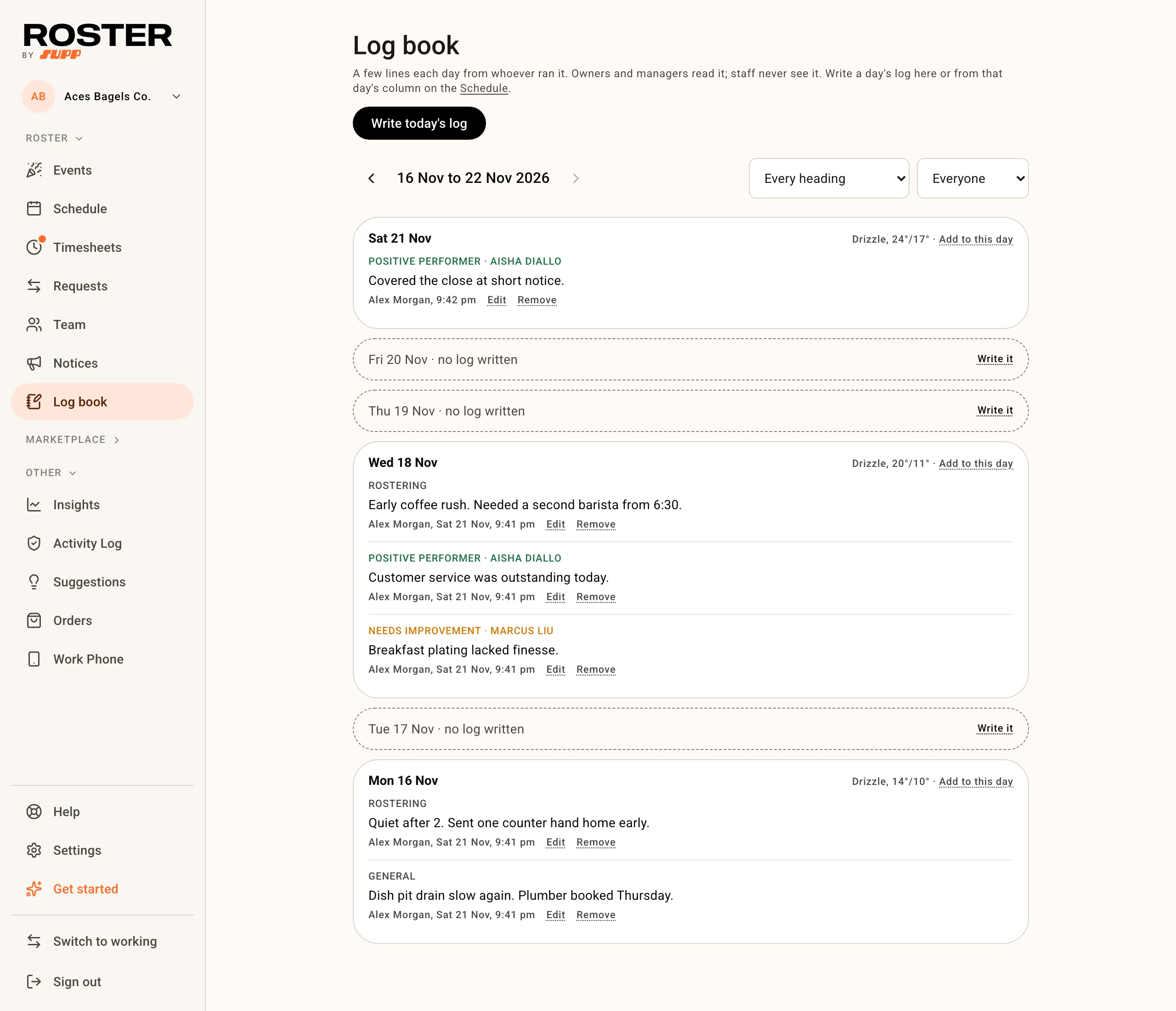
Open Log book in the menu. It shows one week, newest day first, on your venue's own Schedule week. A day nobody wrote is a dashed row with Write it. Filter by heading or by person, and use the arrows to go back a week.
Where Roster has them, each day also shows its weather and its wages as a share of sales, so a comment like "quiet after 2" sits beside the numbers for that day.
4. See the notes about one person
Open someone from Team and scroll to Notes. Every positive performer and needs improvement note about them is there, newest first, with the day and who wrote it. You can add a note from there too. It files under today.
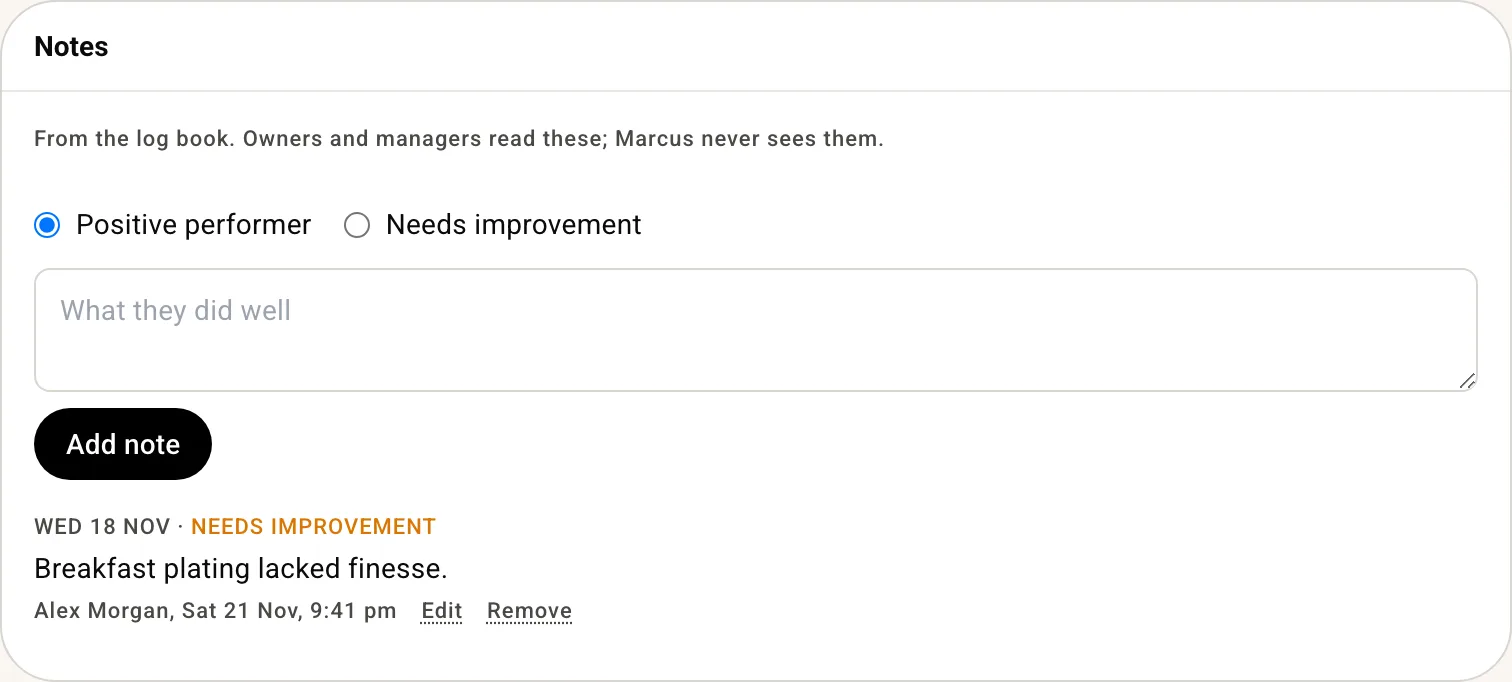
Your own profile has no Notes section.
5. Write it from your phone
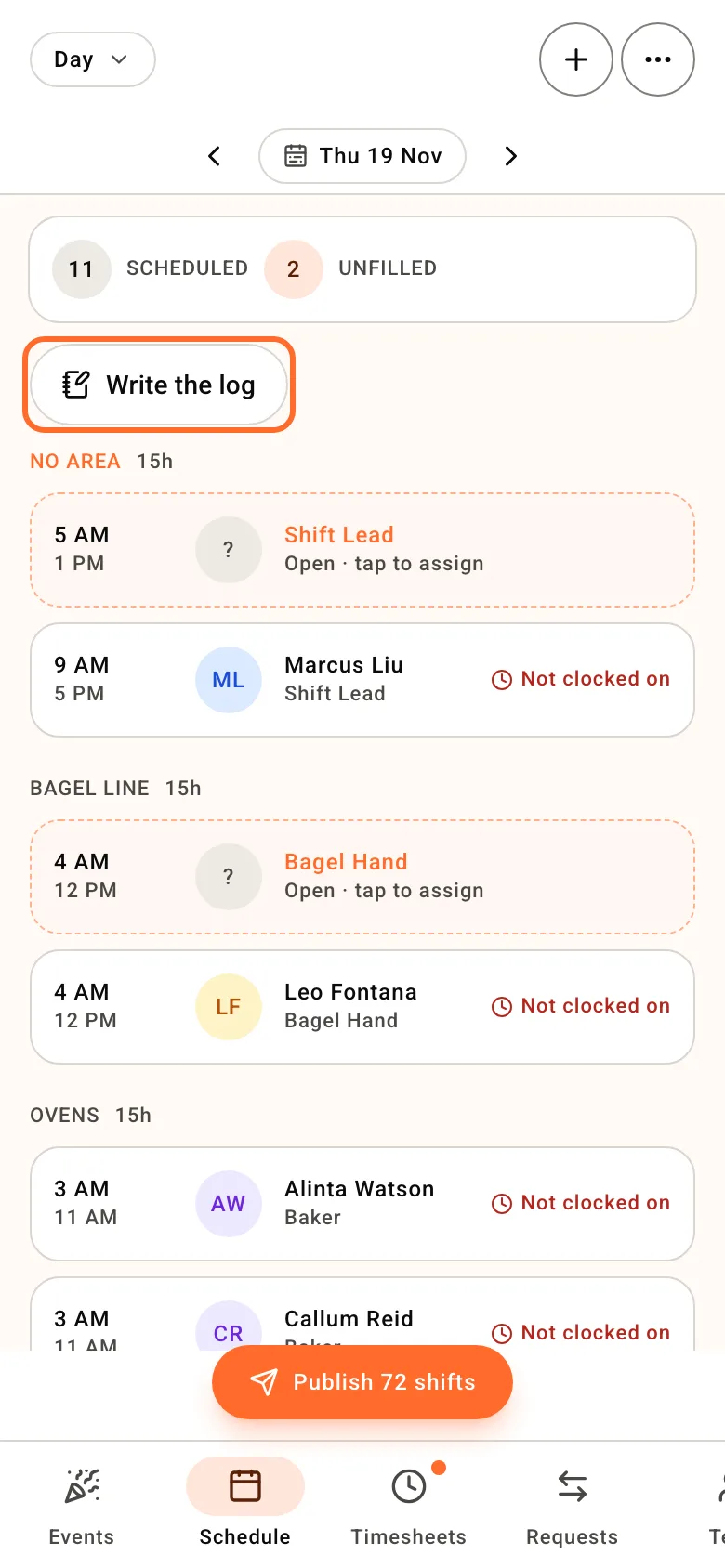
Open the day in the Schedule on your phone and tap Write the log at the top. It is the same form.
6. Make it part of closing
Under Settings, Venue, Task lists, add Write the log as a required task on a closing list for your manager position. The manager sees it before they clock out, and if it is still unticked Roster asks them once before they go. Set up opening and closing task lists has the steps.
Fixing an entry
The person who wrote an entry can Edit it or Remove it for 24 hours. After that it is locked, and only an owner can remove it. The person and the day on an entry cannot be changed: if a note was filed against the wrong person, remove it and write it again.
The Activity Log records every entry written, edited and removed. For a note about a person it records only that a staff note was written, and for which day.
Related
- Manager log book - who sees what, and the questions in one place
- Set up opening and closing task lists
- Import, build and publish a schedule